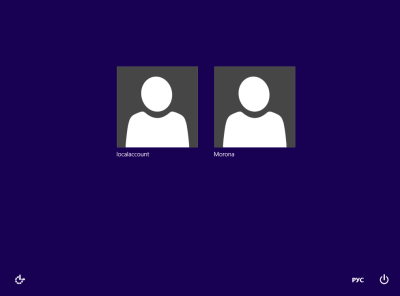
If you have multiple user accounts in Windows 8 (e.g. one for yourself and another for your family member), you may notice a new annoyance in Windows 8 - it signs in the last user automatically who shut down/rebooted the PC. Most users would not like to be signed in automatically and would instead prefer seeing a list of users at the logon screen, from where they can choose which user account to login with. Today, we are going to share a way to prevent Windows 8 from automatically signing in the last user. Let's start.
Advertisеment
Overview
In Windows 8, the auto sign in process is controlled via the "Enabled" DWORD value at the following registry key:
HKEY_LOCAL_MACHINE\SOFTWARE\Microsoft\Windows\CurrentVersion\Authentication\LogonUI\UserSwitch
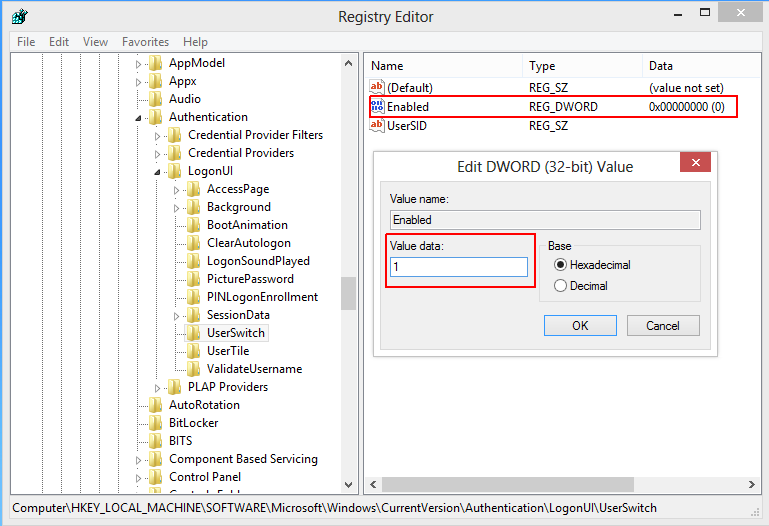
If the "Enabled" parameter is set to 1, you will get a list of users instead of the last user automatically getting signed in. A problem however is the behavior of the LogonUI.exe process which resets the "Enabled" value back to zero at every startup, even if you set it manually to 1. Why this behavior is introduced is not known.
We need a way to prevent the "Enabled" value from being reset to 0 every time and to set it back to 1 before the next logon so that the list of users is displayed.
Here are the steps to do just that.
First, make sure that you have disabled the automatic sign in option. Press Win+R keys on the keyboard and type the following:
netplwiz
Then press Enter.
The following window will be displayed:
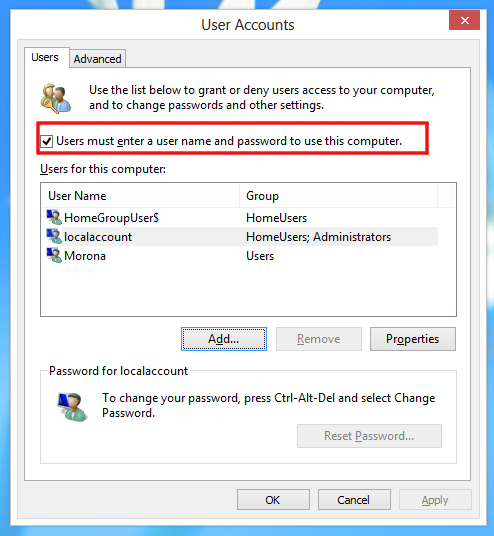
Check the option called "Users must enter a user name and password to use this computer".
How to prevent Windows 8 from logging in automatically to the last logged-in user
This method is based on Group Policy and uses the Logon/Logoff Scripts feature of Group Policy. It is probably the best way to keep the Enabled value equal to 1 at the end of your Windows session.
You must specify reg.exe as script name and 'add HKLM\SOFTWARE\Microsoft\Windows\CurrentVersion\Authentication\LogonUI\UserSwitch /v Enabled /t REG_DWORD /d 1 /f' (without the quotes) as script parameters:
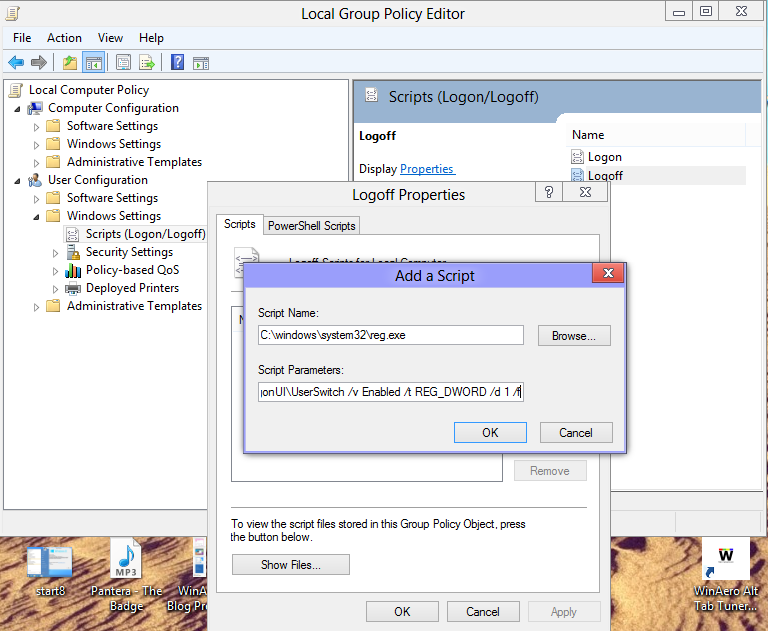
After you do this, you will get the user list every time Windows 8 tries to log on. A quite simple trick.
But it is not so easy to provide ready-to-use scripts for you for this method because GPO settings are per-user and they are stored in the registry at a path which includes the user's unique SID (S-1-1-164699034-like thing, known as security identifier). On every machine, this SID is unique and different. So I created a tool to automate all the steps with one click.
Download my User List Enabler - free, portable tool.
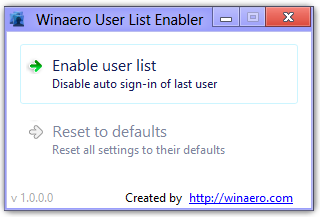
Grab it here. It does exactly what I mentioned above - finds the user's SID and adds the necessary registry values, so that you will be able to enable the user account list on the Windows 8 logon screen with one click.
How to restore defaults and undo this
If you are using Group Policy's Logoff script, simply remove the script. If you used my tool to enable the user list, you can disable it and restore the defaults using 1-click.
Thanks to my friend, Gaurav Kale who helped me with this research.
That's it. Please share with us if you could tweak this behavior in the comments below.
Tip: If you want to do the opposite and log on automatically to Windows, see this article.
Support us
Winaero greatly relies on your support. You can help the site keep bringing you interesting and useful content and software by using these options:
If you like this article, please share it using the buttons below. It won't take a lot from you, but it will help us grow. Thanks for your support!
Advertisеment


Hey,
I’ve been following this blog for a couple months now, you have really cool tips and tricks.
One thing, as another user commented on another post, you should explain the manual process completely, then have a ready-to-use scripts sections for the casual folks.
Call me lazy, but I hate having to download the .zip to read the .txt files and cmd’s then having to delete everything just to know what to do manually.
If you use this, It will break the windows 8 store from being able to log you on and it will break the remote desktop connection credentials to do remote desktop connections, also the UNdo script did NOT work, it refused to change it even after right clicking and run as administrator, I just spent the last half hour trying to figure out what went wrong and this was the only tweak I did all day thank GOD, so I could figure out what went wrong and where, Great script but did NOT work at all for critical things like the rdc and store apps. Thank you anyway,,,Love your site and use many of the tools.
I tried it and see no such behavior. You may be mistaking something else you did and blaming it on the script. I am sorry, anyway. There is no any side effect from this scripts
Same problem here… No app login (store, calendar, …) with my microsoft account possible with this tweak. And everytime the event log tells about an application error in CredentialUIBroker.exe :(
For me the undo script also didn’t work. I had to change the registry value on my own.
For your information: I have two active local users for login.
Please help! the undo script doesn’t work, I tried modify the registry by my own, and it says “Cannot edit Enabled. Error writing the value’s new components”
More info for you, win 8 pro, multiple user accounts, everything turned off, location, live tiles, etc etc, port 3389 works fine for remote desktop, but I also have more than one server ported out to 3390, 3391, etc, and that was the one that would not work because it was saying the credentials, when I undid the script it worked, also the windows store would not let me log in no matter what I did, unless I switched to a Microsoft account instead of a local account, I never run a Microsoft account in win 8, only local, then I switched back again and it was the same thing, can’t sign in.
I looked around online and can’t seem to find why it would do that? Thank you:)
Try this: http://helpdeskgeek.com/windows-8/fix-windows-8-we-werent-able-to-connect-to-the-store-error/
Tried and working. Thanks!!!
Thanks!!! It works.
It worked…
Until I shutdown my pc via the switch on my computer. After that it tried to login back to the last account.
The DWORD was back to 0
Same problem here… At second start up it’s back to “normal”… :(
Finally! It works! It had been months that I waited this solution.
(only works if the program is started for each user)
Thank you!
Hi Sergey,
I have this issue in my Windows 8 laptop and finally found the value to turn it off by reading your post. One question I have:
Why do you implement the script at the User Configuration\Windows Settings\Scripts\Logoff stage in GPO? Not all users can change the HKLM values.
I recommend implementing the reg script at the Computer Configuration\Windows Settings\Scripts\Shutdown or Startup stage instead, so one GPO takes care of all users, regardless of their SID
That’s because if it’s enabled throughout the user session (at startup), “Run as different user” functionality in the context menu is broken and Explorer crashes.
Sorry Sergey but your tool ´User List Enabler´ doesn´t work!
After downloading, installing and reboot, myPC goes to the latest user at startup like before!
Which edition of Windows 8 you have? Pro or just Windows 8?
No Pro, just Windows 8.
It looks like it does not support Group Policy settings. I will implement an alternative way to fix the issue.
Thanks Sergey, It would be very nice.
Regards, Sia
fixed. I will cover hows new version works soon.
Could you please release the fix so that we can use it?
Thanks
I have released it.
User List Enabler 2.0 uses Task Scheduler way to perform the task mentioned in this article.
The download link is the same: https://winaero.com/comment.php?comment.news.206
Change log
v2.0
User list enabler now compatible with Windows 8 and Windows 8 Pro.
Fixed a bug with user account which is not administrator.
Application was rewritten from scratch.
Please let me know if you have any issues with latest version.
I have tried the tool but nothing happened my windows is winows 8 Enterprise x64
Just installed and ran the tool. It Works perfect!
Thanks
Does not work anymore since 07/04/2013. it could be because of an update. After the restart, the registry key is set to 0 when it should be 1 because of the script.
On windows 8 pro x64.
I downloaded your tool but it didn’t work for me (Windows 8 32-bit Pro) but the Group Policy method worked perfectly so thanks, great info
I seem to have an issue with the regedit and the gpedit method as well:
I currently have 3 users on my machine; my admin account and 2 other basic user accounts for my parents. I’ve set the registry value to 1 and have kept it that way via the group policy script but only on my account! When I’ve checked the registry value on the other two accounts; they are always set to 0 and, seeing as how these two accounts are not administrator accounts, I can’t set the group policy script on them :D
The result:
After using my admin account and shutting down/restarting/logging off; the user list screen is displayed correctly. However, after the other two, non-admin accounts use the computer, Windows tries to login automatically to them on the next startup.
Any suggestions? Contact me via e-mail, if possible: chestbuster1987@gmail.com
Thanks in advance
I have same problem, any solution?
The simplest way to make administrative changes within a user account is to give the user account administrative rights, make the necessary changes, then change the account back to a normal user.
Your user list enabler (version 2) doesn’t work for me. Windows 8 pro, 64 bit, 2 administrator users.
Actually it worked 2 times, after that it didn’t do anything. I reset to defaults and enable again many times, but it didn’t help. Please help me. What’s wrong?
Wim
Hello !
Worked fine for me with Windows 8.
Now with 8.1, it doesn’t work at all. I tried on several PCs, but no success.
It seems that the registry keys are now protected by the user “system”, and even Admins have not the right to change it !
If you have a solution it would be great..
UME
Using the method of changing the Enable to 1 permanently seemed to cause problems , especially with UAC and entering a password for an administrative event.
But I worked out how to fix this with out causing any other issues. This is what I did.
1. Backup/export HKEY_LOCAL_MACHINE\SOFTWARE\Wow6432Node\Microsoft\Windows\CurrentVersion\Authentication\LogonUI\UserSwitch
2. Change the UserSwitch Enable value to 1
3. F5 to refresh registry, then delete the UserSwitch Key
4. From the Parent Key ‘LogonUI’, right-click it and select Permissions
5. [Disable Inheritence] and select ‘Remove’
6. Now edit each User, Advanced Permissions and uncheck/untick ‘Create Subkey’ (This stops the key being recreated).
Reboot to test.
If there is an issue you can just merge the Userswitch.reg file you backed up and then re-edit ‘LogonUI’ key and check create subkey. But I haven’t had any issues at all with this method. Works in Windows 8 and 8.1, Pro and Core.
Good Luck
Many thanks for this comment.
I will try your trick and will update the tool.
I will be very pleased if you can update the tool.
Sure, I have few ideas for the new version.
I have literally no idea what you wrote in couple steps here and I am pretty sure ive messed something up already, glad I backed up the keys but the permissions are messed up, next time please write in full word not “6. Now edit each User, Advanced Permissions and uncheck/untick ‘Create Subkey’ (This stops the key being recreated).” etc. because we aren’t wizards who can predict future from crystal ball of what do we have to do in each step…
Can you update this? You should write how to do it manually because the tools isn’t working anymore (Windows 8.1 over here…)
Ok the gpedit method seems to be working, I just had to add it to my user and it works on all users on whole machine :3
Great tool, worked like a charm (8.1 Pro x64).
But im looking for a way to have the userlist allso appear when the system returns to the logon screen when the system i locked. My dear wife has a habit of loging me out of my facebook/linked in/and what not, on my account, rather then login in to her windows account :(
Geting her to use her account will only work if she is made to, and that means presenting her with the correct option each time she sits by the computer. But as of now, it only happens upon boot.
Any idéas?
For some reason this method does not work for Windows 8.1 (x64) for me. I can change the DWORD value to 1 and get the login page as I want but at the next startup it will be at 0 again. Even if I changed the “Users must enter a user name and password to use this computer”.
Holding the “shift” key as the login page is loading also turns the autologin DWORD value from 1 to 0, thereby permanently stopping the autologin process.
Setting the UserSwitch Enabled to 1 did the trick also on Windows 8.1, but is also needed to setup right authorizations for all users for UserSwitch (e.g. setup for all users as read only). This is very annoying if you have to do on several pc, but at this point this is the only solution that works for me on 8.1. Proposed application doesn’t work at all.
Btw, this is a very inexplicable behaviour introduced from Microsoft, why they don’t provide a simple setting?
I can think they did that because to force users to setup a password, I also believe (I didn’t tried) that setup a password for all user, at bootup windows will list all user. However, I’m happy with the solution I found.
Thanks to point me to a solution.
Hello,
It doesn’t work on my PC. Windows 8.1 / 64 bits
I tried to run the tool on each account but same result
That’s a pity.
This work in weird mode on windows 10 TP..
If i use the tool, or the script, at reboot i will not have the “multy” account screen, but i will auto enter on the password insert request of the second account ._.
This is fixed in Windows 10 9888
See https://winaero.com/blog/windows-10-build-9888-change-log-whats-new/
I have a problem in Win 8.1 where i forgot the password for last used user account and since windows do not give the option where we can see list of user accounts ,I am not able to unlock the system.Any suggestions?
Thanks
All you need is this tool: http://pogostick.net/~pnh/ntpasswd/
Where do i find Local Group Policy Editor and where do i enter the registry key?
on windows 8 or 8.1, just type “group policy” and it will find the program for you. don’t worry about the registry key. if you just do the log-off script then it will take care of the registry key modification for you upon logoff. this is what I did and it worked perfectly.
one more thing…make sure you are logged in with an administrator account when doing all this.
cheers ;-)
You can find the Local Group Policy Editor if you type gpedit in the search box of an Explorer Window. Unfortunately this feature can’t be edited on all PCs for example when I run the app on my PC is showed a prohibition sign. Moreover I installed the User List Enabler, sadly the tool was working from time to time so I decided eliminate it, the worst fact was when the tool worked it caused critically slowness during the log in process, just try to watch a video after a few seconds of enter on your account and you’ll know what I’m talking about…
The manual method as described in this article works just fine on windows 8.1 enterprise 32 bit. I have not tested it on other windows versions. For me, the manual method is just as fast (if not faster) than downloading and running the tool. Also, if you do the steps while logged on as an administrator, then it works for all windows user accounts.
Thanks a lot for this info! That whole log in bit was really a pain for those of us who like to only use the admin account to install.
Cheers! :)
thank you!
windows 10 support?
a bit later
In Windows 10 even when dword value is set to 1 and ‘User Switch’ folder is set to deny full control for System auto log in still happens.
In Windows 8.1 Winaero User List Enabler wouldn‘t work for me but today I‘ve tried it in Windows 10 and it did! Maybe it‘s somehow related to the trick I‘ve tried before (upper post)? Not sure about this since I reset permissions after trick coming out as not successful.
Hi – I upgraded to Win10 yesterday and arrghh that nasty last user log in has come back….any updates on when you hope to have a Win 10 version of your software?
Thanks
Ken
Backup/export HKEY_LOCAL_MACHINE\SOFTWARE\Wow6432Node\Microsoft\Windows\CurrentVersion\Authentication\LogonUI\UserSwitch
Change the UserSwitch Enable value to 1
The user “SYSTEM” changes the value back from “1” to “0”
So the goal is not allow the user “SYSTEM” to change it.
Right mouse click at registry key “UserSwitch” -> “Permissions”
“Advanced” -> User “SYSTEM”: “Disable inheritance”
Change owner from “SYSTEM” to group “Administrators”
Group “Administrators” -> Allow -> full control.
“Advanced” -> User “SYSTEM” -> “Edit” -> Type “Deny” -> “Show advanced permissions” -> “Clear all” -> check only “Set value”
This guy has the right idea. I don’t prefer logon scripts, and the script doesn’t always work. This permission change will set the registry folder to not change.
DON’T set USERSWITCH\Enabled = 1
That BREAKS UAC for non-administrative users.
Hello,firstly i appreciate the author for this beautiful content. I must share and recommend this. Please must update this content to add more value to us. I am happy to see this published content.
i have my own website that share a quality content to user you must check it out