Microsoft recently announced a forthcoming update to Windows 11 that will allow you to remove the “AI Actions” section from the File Explorer right-click context menu. The change responds to user feedback pointing at interface clutter, specially from those who do not use Microsoft’s built-in artificial intelligence features.
Advertisеment
Starting in Windows 11 Insider Preview Build 26220.7344, the AI Actions menu will no longer appear when no applicable or enabled AI actions exist for a selected file. Additionally, the submenu will remain hidden if the user has disabled all AI Actions in the Settings app. There is a special Settings page for that under Apps > Actions. 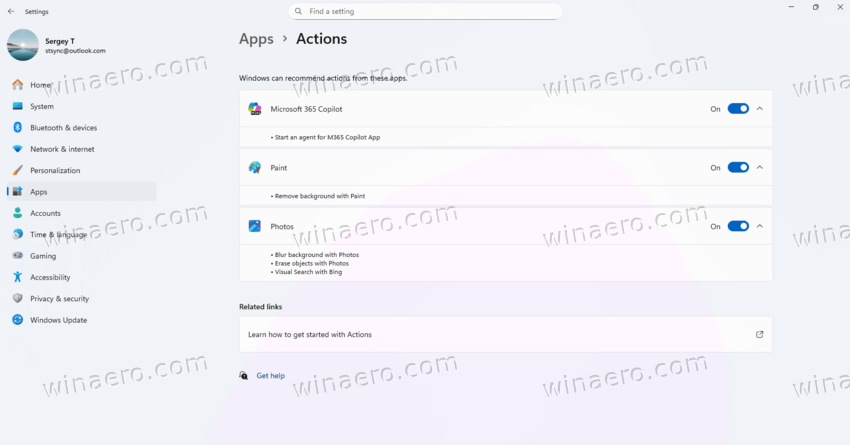
What Are AI Actions?
AI Actions in File Explorer currently offer a set of options when users right-click certain file types, primarily images. These include background removal, object removal, image blurring, and visual search via Bing. However, selecting any of these options redirects the user to existing applications such as Photos or Paint, rather than performing the task directly within the context menu.

Despite the integration of AI capabilities, many users consider the feature redundant. Opening a file in the corresponding app has the same effect, and the context menu already offers the entries for that.
How to Enable Updated AI Actions Page in Settings
If you want to disable AI Actions with the Settings app, then follow these steps:
- Download ViVeTool from GitHub, and extract it to the C:\ViVeTool folder.
- Open Windows Terminal.
- In the PowerShell tab, run the following command to enable the updated Actions settings page:
C:\ViVeTool\ViVeTool.exe /enable /id:59193521.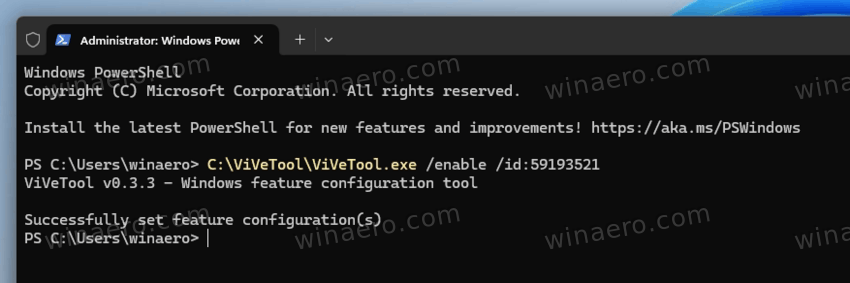
- Restart Windows 11.
- After executing the command, navigate to Settings > Apps > Actions.
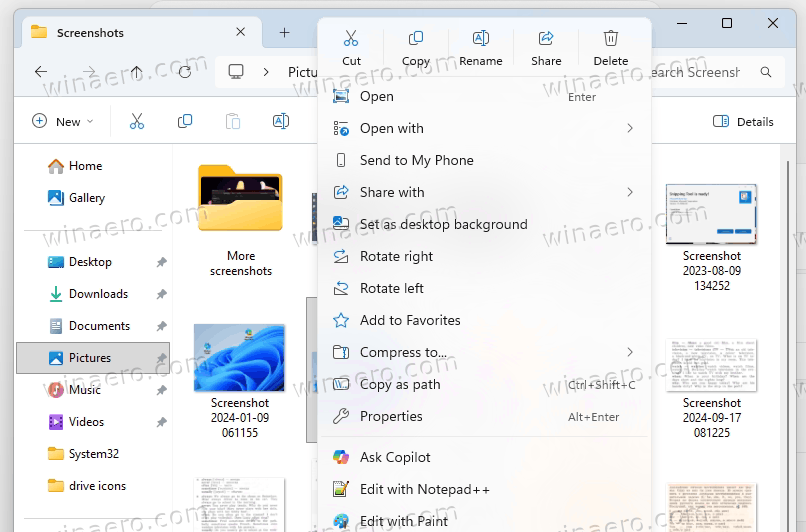
- Disable AI Actions for all listed applications, including Photos, Paint, Teams, and Microsoft 365 Copilot. They will disappear from File Explorer including the AI Actions subitem.
That's it! Thanks to @phantomofearth for the ID.
The undo command is C:\ViVeTool\ViVeTool.exe /disable /id:59193521
Disabling these options will ensure the AI Actions section disappears entirely from the context menu. Microsoft expects to deploy the change broadly to all Windows 11 users early next year.
Support us
Winaero greatly relies on your support. You can help the site keep bringing you interesting and useful content and software by using these options:


I want AI stripped in it’s entirety, quite frankly.