Microsoft has released Windows 11 (version 26H1) Build 28020.1362 (KB5073095) to Insiders in the Canary Channel. It introduces several updates across system features and applications. Paint version 11.2511.281.0 now supports auto-hiding the toolbar, accessible via a chevron icon. The Xbox Full Screen Experience expands to more portable devices, offering console-inspired navigation and performance improvements by reducing background tasks. The Click to Do context menu appears automatically for large images or tables and improves access to common commands. An AI agent in Settings assists with recent configuration changes, while Search shows more results and explains limitations when changes are unavailable. And more.
Advertisеment
Paint 11.2511.281.0
The new Paint version 11.2511.281.0, featuring the toolbar collapsing feature, is now available to Insiders in the Dev and Canary channels.
Open Paint and click the chevron icon in the lower-right corner of the ribbon to enable the "Auto-hide the toolbar" option. Then, use the "Show Toolbar" button to bring it back for switching between tools. To hide it again, click the "Hide Toolbar" button or click anywhere outside the toolbar. If you want to return to the default behavior, click the chevron icon and select "Always show the toolbar."Gradual roll-out
Changes and improvements
Games
- Xbox Full Screen Experience (FSE) is now available for more Windows portable devices. Initially, it was available only to owners of the ASUS ROG Ally and ROG Ally X.
Xbox Full Screen Experience offers a simple interface and navigation system inspired by Xbox consoles, allowing you to comfortably navigate your device with a controller. The feature improves game performance by minimizing background tasks.
To enable this interface, go to Settings > Gaming > Fullscreen and set Xbox as your home app. You can also access the Xbox app fullscreen mode from Task View, Game Bar settings, or by using a Win + F11 keyboard shortcut to toggle it on and off.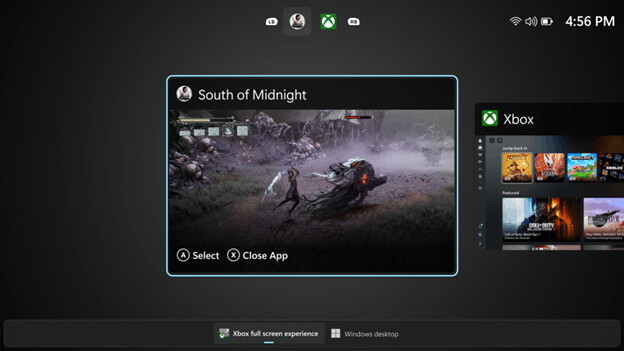
Image by Microsoft
Click to Do
- The Click to Do context menu has been updated to make it easier to find the information you need. It's also easier to access frequently used commands like Copy, Save, Share, and Open.
- The context menu now appears automatically when there is a large image or table on the screen.
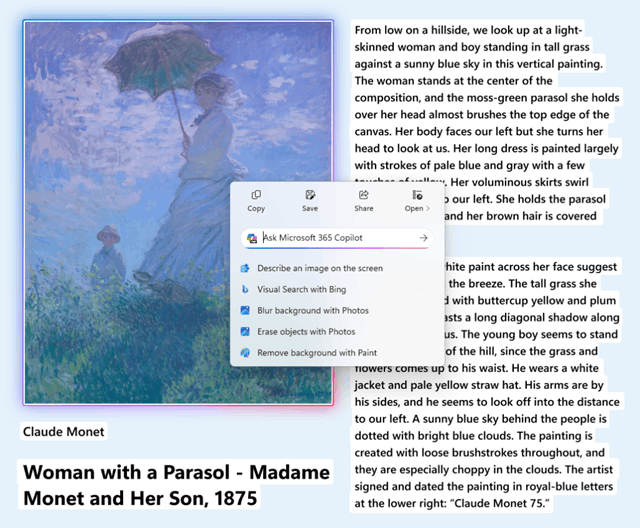
Image by Microsoft
AI Agent in Settings
- Microsoft is rolling out new improvements that aim to make it easier to change settings in both Search and Recommended settings.
- Recommended Settings. This section now allows you to quickly make changes to the system by displaying the AI agent's actions for recently changed settings.
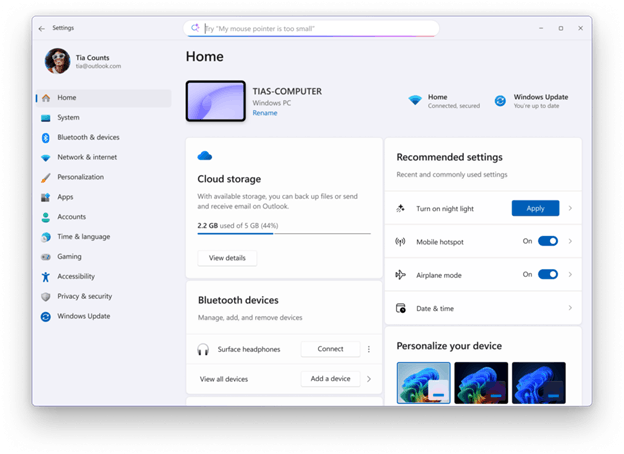
Image by Microsoft
Search
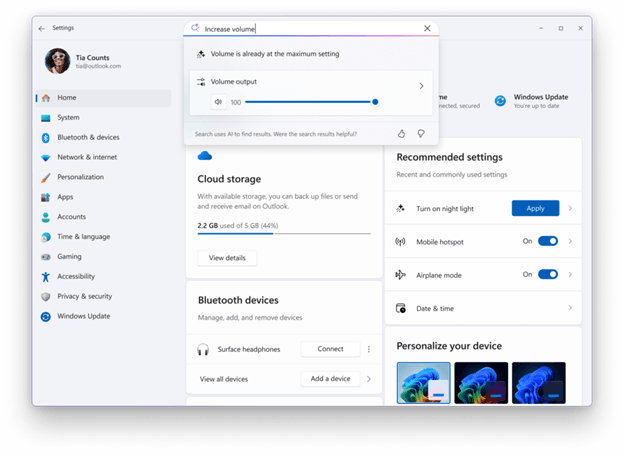
The search pop-up now displays more results, making it easier to find and change the settings you need. When further configuration is not possible, a dialog box explains the reason and provides the option to change the settings as needed.
Windows Studio Effects
Now you can use Windows Studio Effects' AI-powered effects not only with laptops' built-in webcams, but also with additional hardware, whether it's an external webcam connected via USB or a camera on the back of the device.
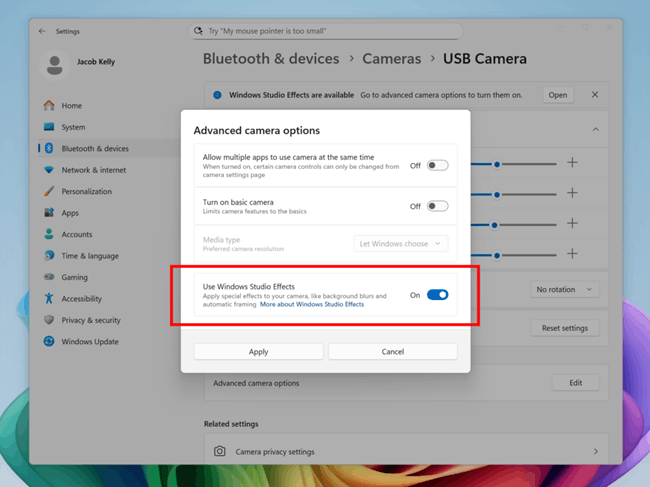
To activate this feature, go to Settings > Bluetooth & Devices > Cameras, select the desired camera, and in the advanced settings menu, find the new toggle labeled "Use Windows Studio Effects." Once enabled, the effects settings will be accessible both from the camera settings page and from the quick actions menu on the taskbar.
Simplified file sharing
The Drag Tray, which appears at the top of the screen when you drag and drop a local file, now supports sharing multiple files at once, intelligently suggests more relevant apps, and makes it easy to move files to the folder you choose.
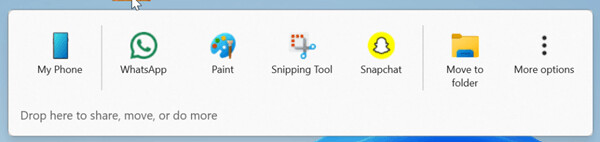
Added the ability to enable or disable the Drag Tray feature in Settings > System > Share with nearby devices.
File Explorer
- Dark theme. Microsoft has improved the dark theme in File Explorer, applying it to key dialog boxes like copy, move, and delete. You'll now see a consistent dark theme across the following elements:
- In the standard and expanded view of the copy, move and delete dialog boxes.
- In progress indicators and chart views.
- In dialog boxes to confirm actions such as skipping, replacing, and selecting files.
- In various confirmation and error dialog boxes.
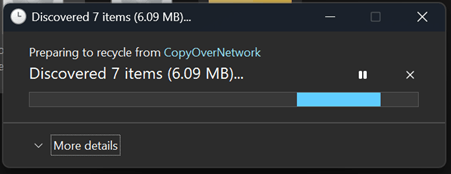
Image by Microsoft 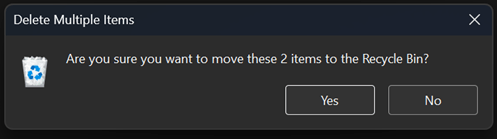
Image by Microsoft 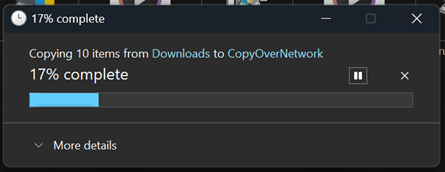
Image by Microsoft 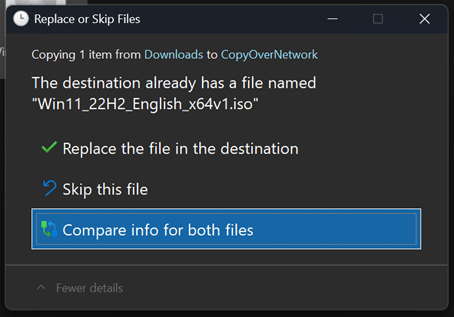
Image by Microsoft
- Updated the placeholder text in the File Explorer search box on Copilot+ PCs to highlight the improved Windows Search feature introduced this year.
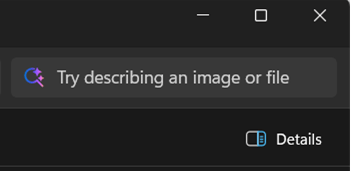
Image by Microsoft - When you hover over a file on the File Explorer main page, the "Open file location" and "Ask Copilot" options appear. This change is now available for Entra ID accounts (not available in the European Economic Area).
Mobile device settings
- You can now add and manage your mobile devices from the Settings app in Windows 11 by going to the Mobile Devices page under Bluetooth & Devices. This page allows you to view a list of your mobile devices, add new devices, and manage features such as using a device as a connected camera or accessing your mobile device's files through File Explorer.
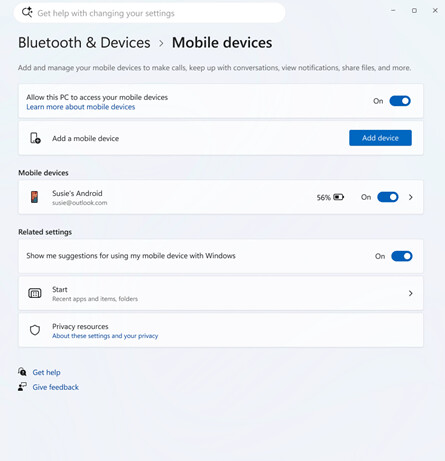
Image by Microsoft
Windows Spotlight
- The desktop context menu now includes options for "Learn more about this background" and "Next desktop background." These options appear when "Windows Spotlight" (Windows Spotlight) is selected as your background in Settings > Personalization > Background.
Input
- Keyboard settings for character repeat delay and rate, as well as cursor blink rate, have been moved from Control Panel to Settings. Character repeat delay and rate can now be found in Settings > Ease of Access > Keyboard, and cursor blink rate can be found in Settings > Ease of Access > Text Cursor.
- Backlight performance has been improved for compatible HID keyboards. Keys on compatible keyboards now provide clear key visibility in low-light conditions, and backlighting is adjusted to save power.
- The AltGr layer is now enabled for the Arabic 101 keyboard layout . The left Alt key continues to function as before, while the right Alt key now acts as a modifier for accessing additional symbols. The first new symbol mapped to AltGr in the Arabic 101 layout is the Saudi Riyal currency symbol (AltGr + S). The Saudi Riyal symbol is also available on the Touch Keyboard Symbols page and in the Currencies tab of the Expressive Input Panel. Users who switch languages using can continue to use the Left Alt+Shift shortcut or the common keyboard shortcut: WIN + <Space>. The Arabic 102 and Arabic 102 AZERTY layouts have been updated similarly.
- Support for pens and styluses with haptic feedback has been added. Users can now feel vibration when interacting with interface elements, such as when hovering over a window's close button or when docking and resizing windows.
Game Pass
- Game Pass references in Settings have been updated to reflect the updated branding and benefits.
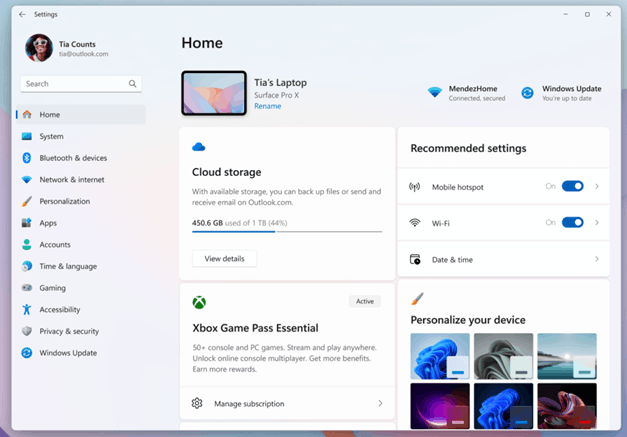
Image by Microsoft
OneDrive
- A new OneDrive icon has been added to the Accounts and Home sections of the Settings app.
Recovery
- On computers with the "Quick PC Repair" and "Automatically Check for Solutions" options enabled, Quick Machine Recovery now performs a one-time scan by default instead of a cyclic scan. If a fix isn't immediately available, the system won't keep you waiting and will quickly suggest the most suitable recovery options.
In the "Recovery" section, the "Quick PC Repair" and "Automatically Check for Solutions" options are enabled by default, triggering a one-time QMR scan.
Additional options
- You can now enable virtual workspaces in the "Advanced settings" section. This allows you to enable or disable virtual environments such as Hyper-V, Windows Sandbox, and others. To configure this, go to "Settings" > "System" > "Advanced settings."
Fixes
File Explorer
- Fixed an issue where File Explorer would not display thumbnails for video files with certain EXIF metadata.
- Fixed an issue where the old white toolbar could sometimes appear in File Explorer.
- Fixed an issue where the File Explorer context menu would display a standard icon instead of the default application icon for that file type.
- Fixed an issue where opening a folder from another app (such as the Downloads folder from the browser) could reset custom view settings (sorting, icon size, grouping) to default values.
- Fixed an issue where the main area of the File Explorer window might stop responding to mouse clicks after calling the context menu.
- Fixed an issue where File Explorer might display an error (0x8000FFFF) when extracting large archives (over 1.5 GB).
- Fixed an issue where File Explorer could become unresponsive when opening the home page.
Settings
- Fixed an issue that could cause the "Auto-hide the taskbar" option to be unexpectedly disabled after the message "There's already a hidden taskbar on this side of the screen." appeared.
- Fixed an issue where Voice Access would not work correctly when attempting to interact with the taskbar (calling an item's number might not activate it).
- Fixed an issue where taskbar icons might automatically shrink even if there was enough space on the taskbar.
- Fixed an issue where clicking an application thumbnail on the taskbar would close the application but not bring the application window to the foreground.
Start Menu
- Users who have access to the updated, larger Start menu will notice that the Windows Search pop-up window now matches the size of the Start menu. This update is designed to make the transition to search more seamless.
Network and Internet
- Some changes have been made to address an issue that could result in no internet connection after resuming from Disconnected Standby.
Display and graphics
- Improved performance when applications query monitors for the full list of supported modes. Previously, this could cause brief stuttering on very high-resolution monitors.
- Fixed an issue on all-in-one PCs where the brightness slider could unexpectedly revert to its original value when interacting with it.
- Fixed an issue where some games might display the message "Unsupported graphics card detected" even though a supported graphics card was being used.
- Fixed an issue where content in apps and browsers could become partially frozen on the screen while other maximized or full-screen apps were refreshing in the background. This could be particularly noticeable when attempting to scroll, as only certain parts of the content would be refreshed.
- Fixed an issue where text might display incorrectly when editing content in a multi-line text field in some applications.
Login and Lock Screen
- Changes have been made to improve the performance of the taskbar loading after unlocking the computer from sleep mode. This should also address cases where the password field and other login screen content were not visible when transitioning from the lock screen to the login screen after sleep mode.
- Fixed a memory leak that occurred when using the slideshow on the lock screen. This could lead to performance degradation or stability issues after unlocking the PC.
- Fixed an issue where the first login to a new account could be very slow.
Narrator
- Fixed an issue where Narrator could occasionally pause abruptly during continuous reading in Word documents.
Windows Update
- Fixed an issue where the Update and Shut Down feature might not turn on the PC after an update.
- Fixed an issue resulting in some Insiders encountering error 0x8007042B when attempting to upgrade to Canary builds from current Windows 11 builds based on 24H2 and 25H2.
Task Manager
- Fixed an issue where Task Manager would continue running in the background after being closed, with the number of processes increasing each time Task Manager was opened. This could also lead to Task Manager unexpectedly appearing during system startup.
Other
- Fixed an issue where some applications might stop responding when opening Open or Save dialogs.
- Fixed an issue where interacting with the desktop could unexpectedly open Task View.
Support us
Winaero greatly relies on your support. You can help the site keep bringing you interesting and useful content and software by using these options:

