Microsoft has released Windows 11 Build 26220.7535 (KB5072046), to Insiders in the Dev and Beta channels. It introduces Copilot-powered image descriptions in Narrator. Also, administrators can now uninstall Microsoft Copilot for specific users via a new Group Policy named RemoveMicrosoftCopilotApp in Enterprise, Pro, and Education editions. And more.
Advertisеment
Insiders in the Beta channel will now receive builds based on version 25H2, just like Insiders in the Dev channel. This update is currently recommended.
If you're using the Dev channel, you now have the option to upgrade to the Beta channel. This option will be available as long as the Dev and Beta channels receive the same builds. At the end of February, higher build numbers will appear on the Dev channel, and upgrading to the Beta channel will no longer be possible.
Future builds on the Dev channel may not be as stable as they are now. Microsoft strongly recommends considering which update channel you want to stay on.
For Insiders with the "Get the latest updates as soon as they're available" toggle enabled
New features
Copilot-powered image descriptions in Narrator
Last year, Microsoft introduced Narrator Copilot+, a feature that allows users who are blind or visually impaired to hear detailed descriptions of images, charts, and graphs generated by artificial intelligence.
Narrator can now work with Copilot on all Windows 11 devices, providing a deeper understanding of images and visual elements on your screen. You can press NarratorKey + Ctrl+ D to get a description of a selected image, or NarratorKey+ Ctrl+ Sto get a description of the entire screen. This will open a Copilot window with the image already loaded, allowing you to enter your own query and get a description tailored to your needs.
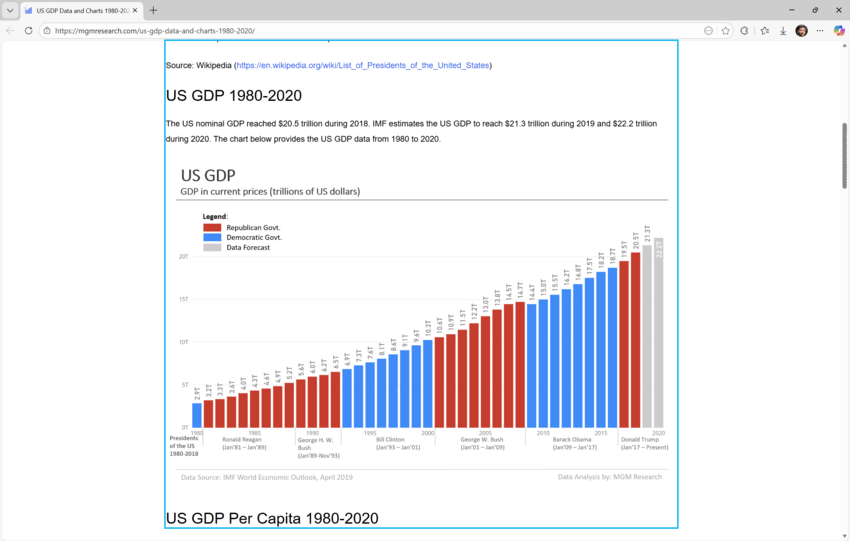
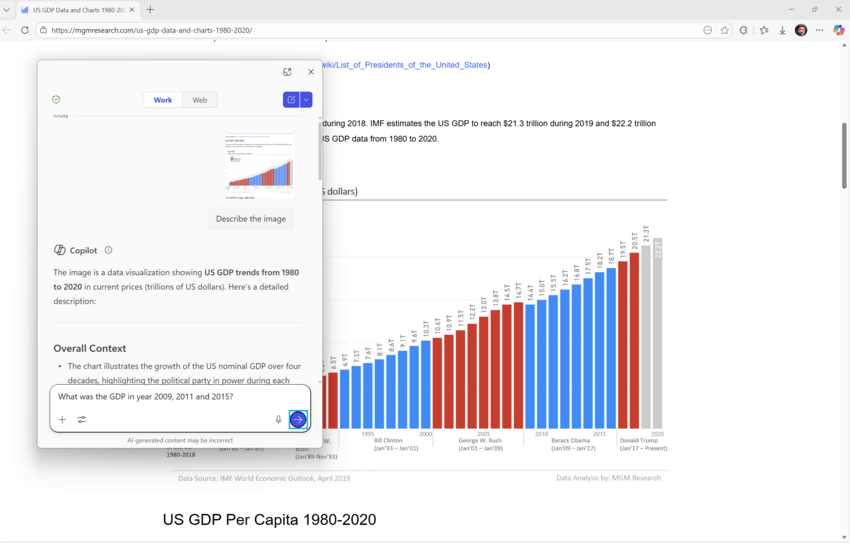
It's important to note that Copilot will only have access to the image after you select the option to create a description. You have complete control over every step of the process. If you need more details or information, simply select "Ask Copilot" to continue exploring.
This feature is not available in the European Economic Area (EEA).
Uninstalling Microsoft Copilot on managed devices
Administrators can now specifically remove Microsoft Copilot for specific users by enabling a new policy called RemoveMicrosoftCopilotApp. This policy will apply to devices/users when the following conditions are met:
- Both Microsoft 365 Copilot and Microsoft Copilot are installed.
- The Microsoft Copilot application was not installed by the user.
- The Microsoft Copilot app has not been launched in the last 28 days.
If this policy is enabled, the Microsoft Copilot app will be uninstalled once. Users can reinstall it if they wish. This policy is available in Enterprise, Pro, and Education editions.
To enable this policy, open the Group Policy Editor and navigate to User Configuration > Administrative Templates > Windows AI > Remove Microsoft Copilot App .
Changes and improvements
For developers
- Microsoft has enhanced the Cross Device Resume feature. Previously, app developers could integrate this feature using a solution based on the Link to Windows app.
Now, there's an additional integration method using the Windows Notification System (WNS). This option expands the number of users you can offer the Resume feature to while maintaining the same ease of use and seamless Windows experience. Microsoft encourages developers to explore this new feature alongside the existing integration method. Together, these options will help ensure maximum workflow continuity across devices. Learn more here.
Windows Spotlight
- The Windows Spotlight icon has been updated. Testing of the new icon began in late December among a small group of Insiders.

Fixes
Start Menu
- Fixed an issue where the edge of the warning dialog displayed when shutting down a PC (if there were other active users left on the system) was cut off by the border of the Start menu.
File Explorer
- Fixed an issue causing explorer.exe to crash for some Insiders when using the desktop context menu.
Input
- Fixed an issue that could cause a black flash to appear when using the pen to ink in the Snipping Tool.
Printing
- Fixed a bug where two dialog boxes could open instead of one when sending to print.
- Fixed the color of the close button in the print dialog to match the style of other windows.
- Fixed an issue where text on the Settings > Printers & Scanners page could be cut off and become unreadable.
Windows Update
- Fixed an issue that could cause the Windows Update settings page to freeze when loading.
Known issues
"Xbox Full Screen Experience" for PC
- Some applications may behave incorrectly when using FSE, especially if they have a fixed window size or launch additional windows.
Taskbar and system tray
- Investigating an issue where the Start menu doesn't open when clicking the Start button for some Insiders, but does open when pressing the Windows key. This issue is also believed to affect the Notification Center (opened with WIN+ N) and the quick actions menu ( WIN+ A).
- Investigating an issue where some Insiders aren't seeing apps in the system tray area when they should be.
- Working to fix an issue where the Taskbar, when set to auto-hide, may appear before interacting with the bottom of the screen, blocking the use of apps in that area.
Settings
- [New] Working on a fix for an issue where Settings may crash when interacting with audio devices.
Bluetooth
- Investigating an issue where the battery level of Bluetooth devices isn't showing up for some Insiders.
Click to Do
- Investigating an issue where the Microsoft 365 Copilot input field for selected images doesn't work if Microsoft 365 Copilot isn't running.
Support us
Winaero greatly relies on your support. You can help the site keep bringing you interesting and useful content and software by using these options:

