It is finally here. After more than a year hiatus, I am happy to introduce Winaero Tweaker 1.64. The app has got a number of new tweaks, the ability to increase the user interface font, and support for the dark theme (auto/light/dark). There are also a lot of fixes for known bugs and workarounds for some tweaks that stopped working in recent Windows 11 versions.
Advertisеment
What's new in Winaero Tweaker 1.64
New features
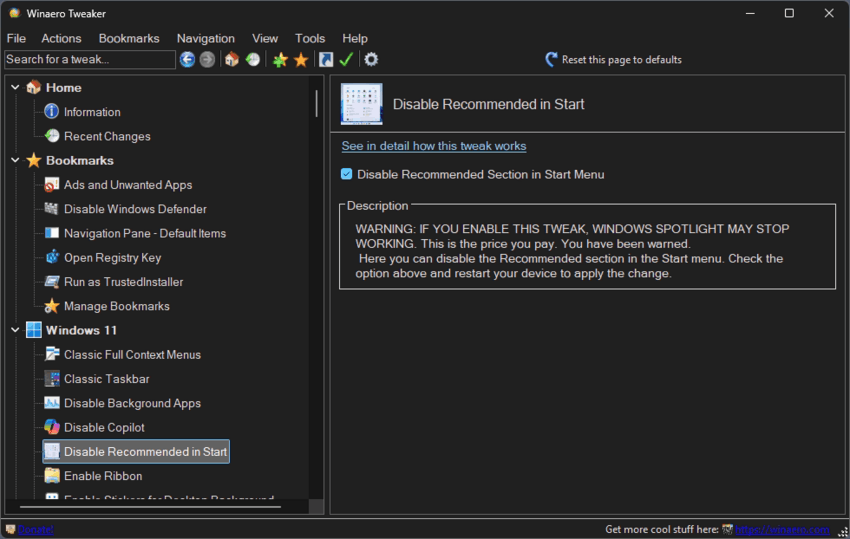
Disable Recommended in Start
You can now disable the Recommended section in the Start menu of Windows 11.
You will get this:
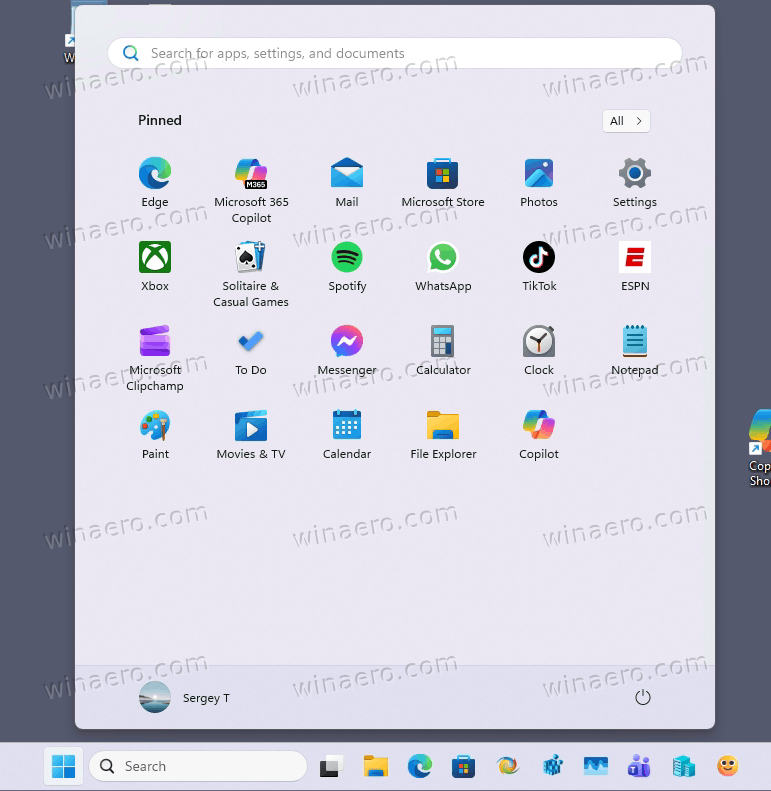
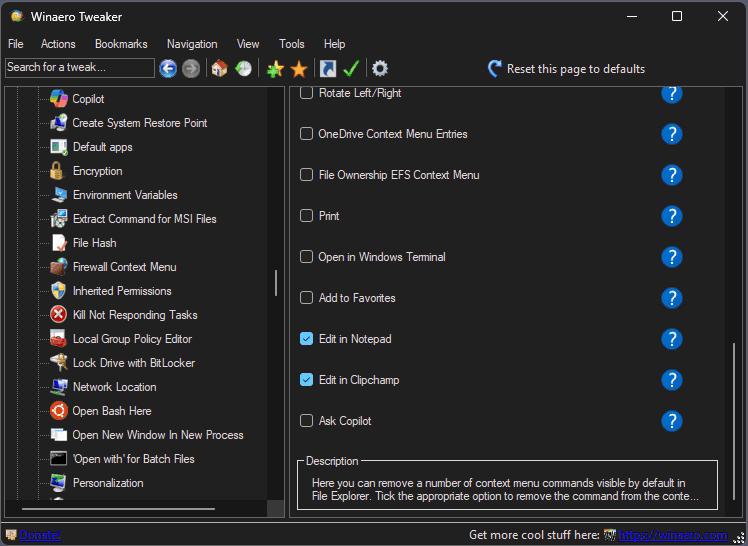
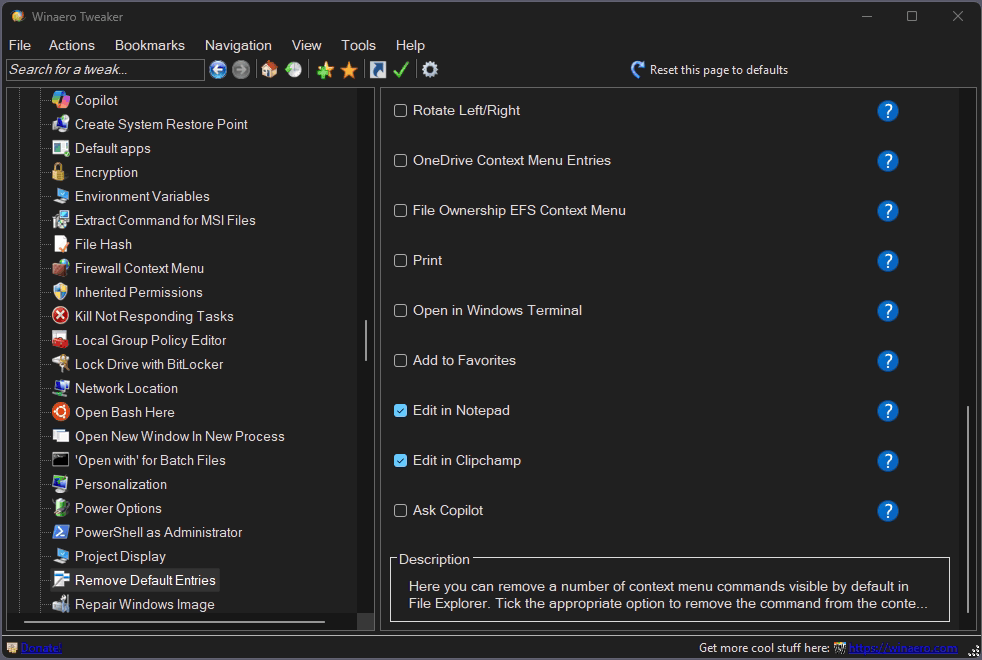
Remove "Ask copilot"
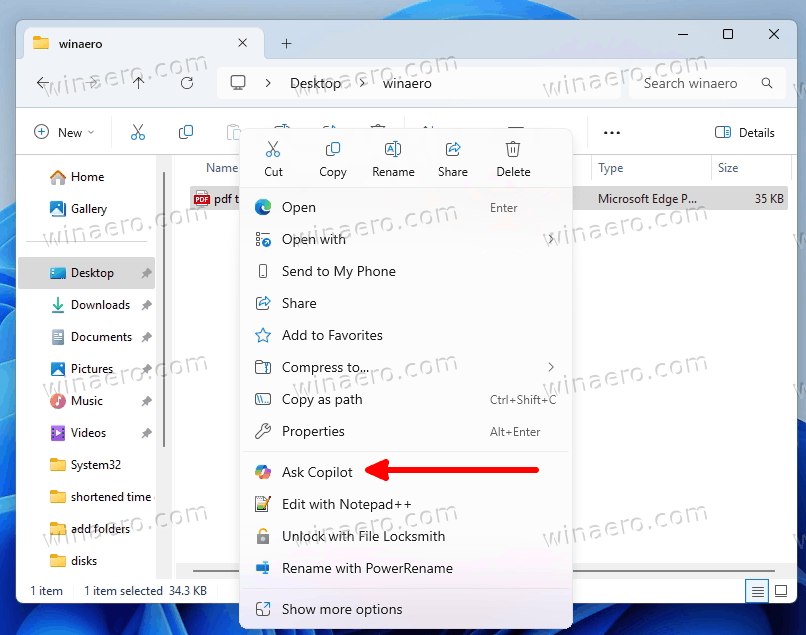
Added the option to remove the Ask Copilot context menu.
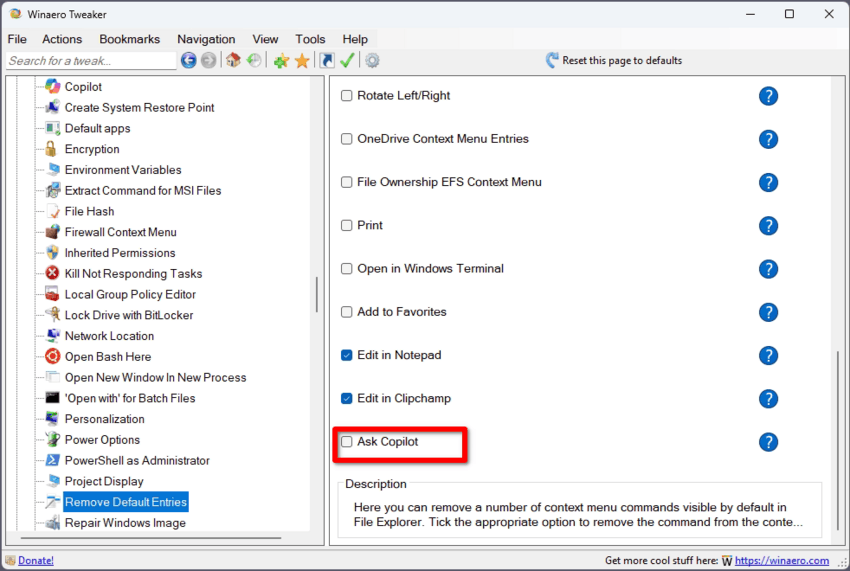
Navigate to Context menu > Remove default entries. There you will find the option.
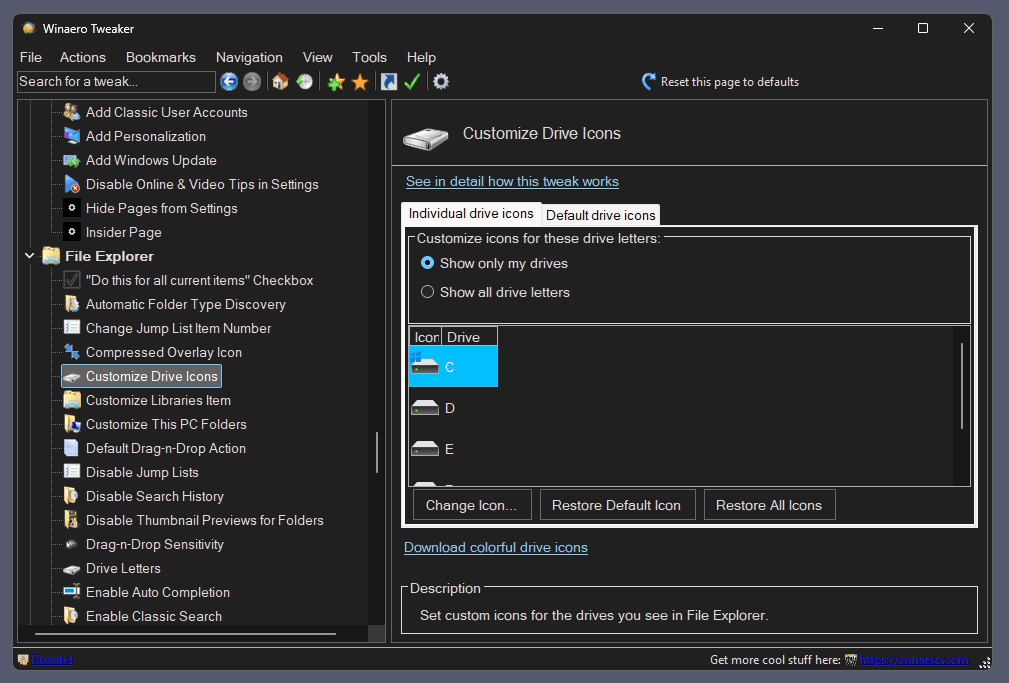
Change Drive Icons
As many requested, I have added the option to change drive icons. You can set a custom icon for any drive letter, regardless of the drive type. And you can set a new default icon for "hard drive". The latter will be used for any non-customized partition letter. The option is in the "File Explorer" section on the left.
User Interface Improvements
As you have already noticed, Winaero Tweaker now supports the dark theme. On Windows 11 and Windows 10 it can follow the system preference. On Windows 8/7 you can select the color mode you like from the app settings.
Font size
One of the most requested features was the ability to change the app's font. Many considered app's font tiny, and this was actually true. Initially, I designed it to follow system DPI scaling, it this was working for some time. At some point, it has become broken, so the font remained very small on HiDPI screens. I have fixed (I hope so) the scaling.
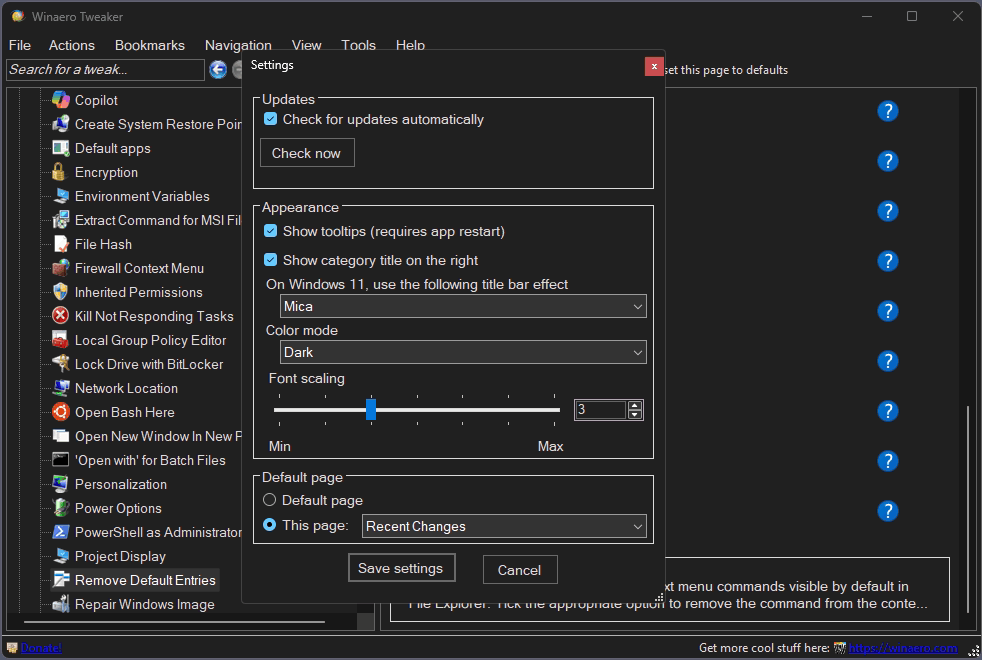
In addition, I have added a manual option that allows you to drastically increase the font. It is in settings. Here are font size samples.

Icon scaling
The icons in the left area used to appear blurry on HiDPI screens. I have finally changed that. Now they look crisp and sharpen.
Fixes
As said, I have done a number of fixes for various options of the app. Some were broken in recent Windows 11 versions, some were broken due to bugs introduced by me. Here are the list of fixes.
- Fixed: After you change "Disable Windows Update" it doesn't appear in "Recent Changes".
- "Disable Defender" now correctly reports its status (Disabled/Enabled) on 24H2/25H2. Also, the tweak now reloads its page when you disable Tamper Protection. You no longer need to re-open the page manually.
- Fixed "Disable Copilot" that was adding the dword value to a wrong Registry key.
- "Inactive titlebar color" now applies correctly on Windows 11, and on Windows 10 22H2. It now checks if the Accent color is enabled for window titlebar, and enables it if not.
- Fixed the broken "Disable Lock screen" on Windows 11.
- Fixed the XMouse options: The settings now save correctly and instantly apply on both Windows 10 and Windows 11. Also, the initial window tracking value was set to 1 millisecond instead of 1 second; I have fixed that.
- Hide the "Home" folder from File Explorer now works in recent Windows 11 versions. It did nothing say on Windows 11 25H2.
- Fixed "Ads and unwanted app". Its main checkbox had incorrect state and couldn't check/uncheck all checkboxes, and could not reflect the correct status.
- Fixed the layout of the "Disable Ribbon in File Explorer" tweak. Its buttons were misaligned.
- Revised tweaks. The app doesn't show tweaks that stopped working or aren't actual in Win11 24H2/25H2 with recent updates. You no longer need Cortana-related options, "enable classic Paint", and so on.
- Fixed "Add copilot to Desktop context menu". The Copilot now is a standalone app, not an Edge page.
- Fixed "Add Snipping Tool to Desktop context menu" on Windows 11. It literally stopped working in Windows 11 25H2 (or maybe earlier), so I re-created it.
- Fixed "Settings" desktop context menu on Windows 11.
Known issues/Upcoming changes
I didn't include the following changes in this release:
- The toolbar icons still appear blurry.
- The icons in the "Information" page still appear blurry
- The "Disable Windows Update" page is supposed to allow you to choose the method to use.
I am still working on the above points and hope to complete them in less than one more year.
Finally, the new taskbar in Windows 11 doesn't support most of the customization options. It is a very disappointing change in the OS. The reason I kept them visible is the amazing ExplorerPatcher app that used to restore the classic taskbar experience. But looks like it is no longer possible with Windows 11 25H2. So I am will eventually hide the classic taskbar options for 25H2+, as there is no point to display them any more. I hope that Microsoft will eventually re-implement them like that did for button text labels and grouping. But my hopes are slim.
Many thanks to everyone contributed to this version. Without your suggestions and feedback it could be much worse.
Download Winaero Tweaker 1.64
You can download Winaero Tweaker using the following links.
- Download Winaero Tweaker from Winaero
- Download Winaero Tweaker from the official mirror.
- Download Winaero Tweaker from my Telegram channel
Other resources.
Release History | The list of Winaero Tweaker features | Winaero Tweaker FAQ
Support us
Winaero greatly relies on your support. You can help the site keep bringing you interesting and useful content and software by using these options:


Wow that’s awesome thanks man
You are welcome!
What about this:
https://www.neowin.net/news/winaero-tweakers-reset-to-defaults-setting-is-corrupting-windows-11-systems/
Hello.
Actually, this was just a minor bug that could be easily fixed. I have already done that in version 1.64.1 of the Tweaker app.
There is nothing “catastrophic” actually happened. The linked Reddit includes a workaround. There was no need for System Restore. I added my two cents on this situation to the release announcement.
Thanks for you feedback.
The latest version of Winaero Tweaker is flagged as malicious by Kaspersky. It’s a “false positive”, isn’t it?
This happens all the time.
https://www.virustotal.com/gui/file/126df59ea25e7e3a5f0948c7b4457909370c67ec2493473eaaae515dfcc8ada0/detection
I can’t do anything. Use some other app instead of mine if you have doubts.
Thank you Sergey. Excellent work as usual.
THE NEW DARK THEME USER INTERFACE LOOKS VERY SMART – NICE TOUCH – REGARDS –
Unhandled exception has occurred in your application error, when opting for get classic games under classic app feature in window 11. Any solutions?
Amazing. What if you click any other link in the app?
FYI PayPal is blocking donations to you.
nobody likes Russia these days
I DISAGREE WITH YOUR STATEMENT – POUR YOURSELF A STIFF DRINK – AND KEEP YOUR PECKER UP – OUT –
You may agree or disagree – it is up to you.
But my PayPal account is a Russian one. I am from Russia. This is the reason why it doesn’t work.
And you are a rude person.
YOU MISINTERPRET MY INTENT MR TKACHENKO –
Quite possible. I am sorry if so.
English is one the most complicated things to me. I have hard times understanding the exact meaning on some statements, and have issues with expressing my mind :)
I HAVE JUST LOOKED AT YOUR PAYPAL PAGE – I COULD NOT BELIEVE MY EYES – WHY DON’T YOU DROP PAYPAL – AND ACCEPT ALL MAJOR CREDIT CARDS INSTEAD –
I HAVE JUST UPDATED PRIVAZER – AND I NOTICED THE DEVELOPER HAS 22 WAYS OF ACCEPTING DONATIONS –
thank you for the suggestion. much appreciated.
I’ll review the options.
Thank you implementing Dark Mode. My eyes can rest easy now.
As for those that like to customize Win11 further and miss ExplorerPatcher i strongly suggest trying out Windhawk and it’s various mods. It’s free and open source and does not modify any system file as it runs only in memory. It’s footprint running in the background is miniscule.
Combine that with Winaero Tweaker and WinUtil by Chris Titus and O&O Shutup 10++ and you can disable or customize 99% of the things you can think of.
Small correction – the Import/Export settings dialog does not support Dark Mode even when it’s enabled globally in the OS and Winaero Tweaker. Hope this gets DM support at some point in the future.
Nice update.
Thanks great app!! :)
What about this:
https://www.neowin.net/news/winaero-tweakers-reset-to-defaults-setting-is-corrupting-windows-11-systems/
Hello.
Actually, this was just a minor bug that could be easily fixed. I have already done that in version 1.64.1 of the Tweaker app.
There is nothing “catastrophic” actually happened. The linked Reddit includes a workaround. There was no need for System Restore. I added my two cents on this situation to the release announcement.
Thanks for you feedback.
https://www.nеоwin.nеt/nеws/winаеro-twеаkеrs-rеsеt-to-dеfаults-sеtting-is-сorrupting-windows-11-systеms/ – Winаеro twеаkеr’s ‘Rеsеt to dеfаults’ sеtting is сorrupting Windows 11 systеms
Hello.
Actually, this was just a minor bug that could be easily fixed. I have already done that in version 1.64.1 of the Tweaker app.
There is nothing “catastrophic” actually happened. The linked Reddit includes a workaround. There was no need for System Restore. I added my two cents on this situation to the release announcement.
Thanks for you feedback.
https://www.neowin.net/news/winaero-tweakers-reset-to-defaults-setting-is-corrupting-windows-11-systems/ – Winаеro twеаkеr’s ‘Rеsеt to dеfаults’ sеtting is сorrupting Windows 11 systеms
Hello.
Actually, this was just a minor bug that could be easily fixed. I have already done that in version 1.64.1 of the Tweaker app.
There is nothing “catastrophic” actually happened. The linked Reddit includes a workaround. There was no need for System Restore. I added my two cents on this situation to the release announcement.
Thanks for you feedback.
Hello Sergey,
Many thanks for the great utility you are maintaining so so long. Just a small feature request to merge the “TakeOwnershipEx” and “OneClickFirewall” into Winaero Tweaker.
I was going through comments in FAQ and you said that it is in your to do in 2016. I think its time now :)
“Sergey Tkachenkosays:
December 5, 2016 at 12:04 pm
I am working to merge them. It is in my TO DO.”