Microsoft has confirmed an issue in Windows 11 versions 24H2 and 25H2 that can cause crashes in key operating system interface elements, including the Start menu, File Explorer, and the taskbar. The issue is known to primarily affect corporate computers and should not affect home users.
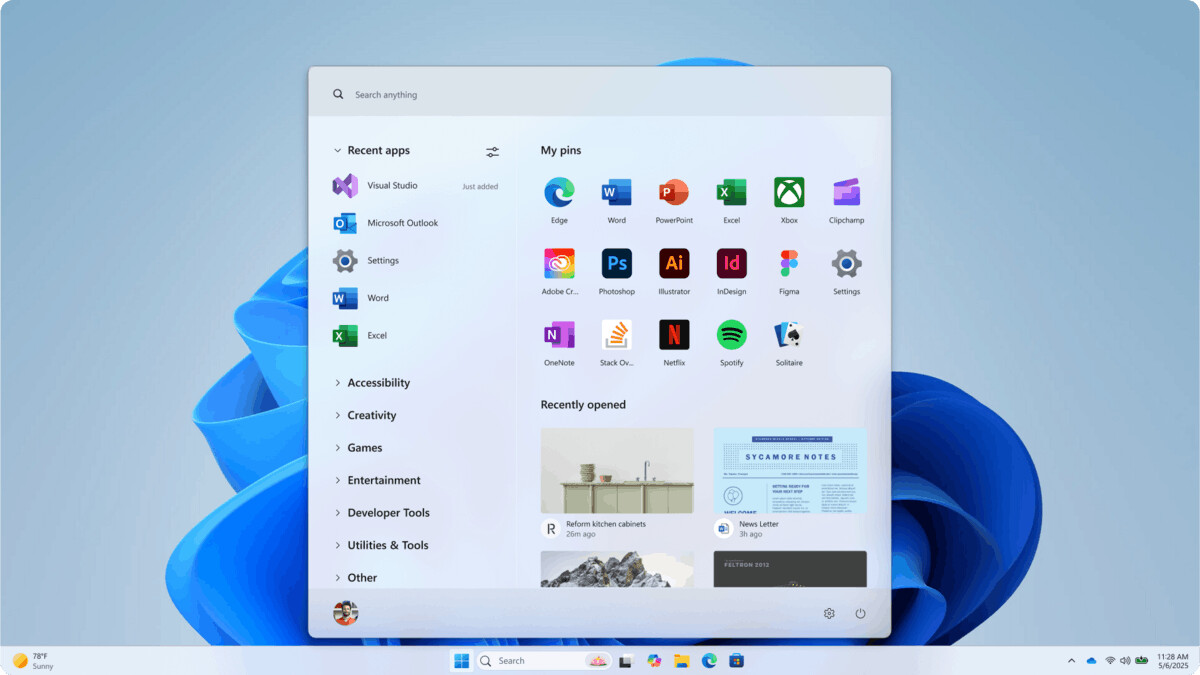
A document on the Microsoft support site states that the issue occurs after installing cumulative updates for Windows 11 released after July 2025. Due to the glitch, modern applications that rely on XAML technology may not work correctly.
Advertisеment
After provisioning a PC with a Windows 11, version 24H2 or a Windows 11, version 25H2 monthly cumulative update released on or after July 2025 (such as KB5062553 or KB5065789), XAML-dependent modern apps such as Explorer, the Start menu, SystemSettings, Taskbar and Windows Search might experience difficulties. This issue primarily affects a limited number of enterprise or managed environments and is very unlikely to occur on personal devices used by individuals.
Possible issues
- The Start menu does not open when clicked.
- The taskbar disappears.
- The Settings app won't open.
- After logging in, a blank screen appears without a desktop.
Fortunately, Microsoft has already identified the cause of the issue. The operating system fails to register certain XAML packages in a timely manner after installing updates. Microsoft is working on a fix, but no timeline has been announced yet.
Workaround
System administrators managing enterprise or virtualized environments can manually register missing packages by running the following commands in PowerShell:
Add-AppxPackage -Register -Path 'C:\Windows\SystemApps\MicrosoftWindows.Client.CBS_cw5n1h2txyewy\appxmanifest.xml' -DisableDevelopmentMode

Add-AppxPackage -Register -Path 'C:\Windows\SystemApps\Microsoft.UI.Xaml.CBS_8wekyb3d8bbwe\appxmanifest.xml' -DisableDevelopmentMode

Add-AppxPackage -Register -Path 'C:\Windows\SystemApps\MicrosoftWindows.Client.Core_cw5n1h2txyewy\appxmanifest.xml' -DisableDevelopmentMode
After running the commands, it is recommended to restart the SiHost process for the changes to take effect.
Source: Windows Central.
Thanks to thecommunity for the tip,
and to Neowin who were first to notice the bug.
Support us
Winaero greatly relies on your support. You can help the site keep bringing you interesting and useful content and software by using these options:

