Firefox 146 introduces a new "Split View" mode that enables side-by-side tab viewing within a single browser window. This feature remains disabled by default and requires manual activation. Here is how you can enable it.
Once enabled, users can access the "Add Split View" option from the right-click context menu on tabs. Selecting this option for a single tab displays a new tab in the right panel, while applying it to a pair of tabs renders them adjacent to each other. Users may adjust the relative size of each panel by dragging the divider line in the middle. The currently active tab receives a red outline for visual distinction.

The Split View feature provides an efficient method for comparing web content, referencing multiple documents simultaneously, or managing workflows that require constant visibility of two distinct pages. This functionality enhances multitasking without requiring multiple browser windows.
Here is you enable the new Split View feature in Firefox 146.
Enable Split View in Firefox
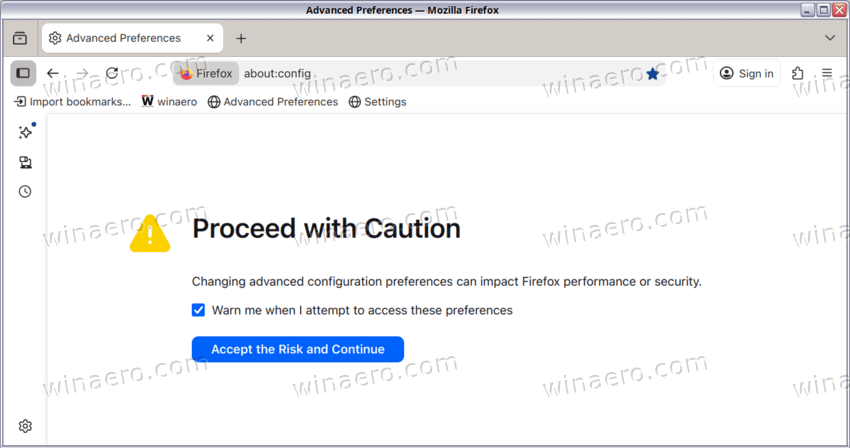
- Open Firefox and type
about:configin the address bar, then press Enter. - Accept the warning prompt by selecting "Accept the Risk and Continue".
- In the search field at the top, type
browser.tabs.splitView.enabled.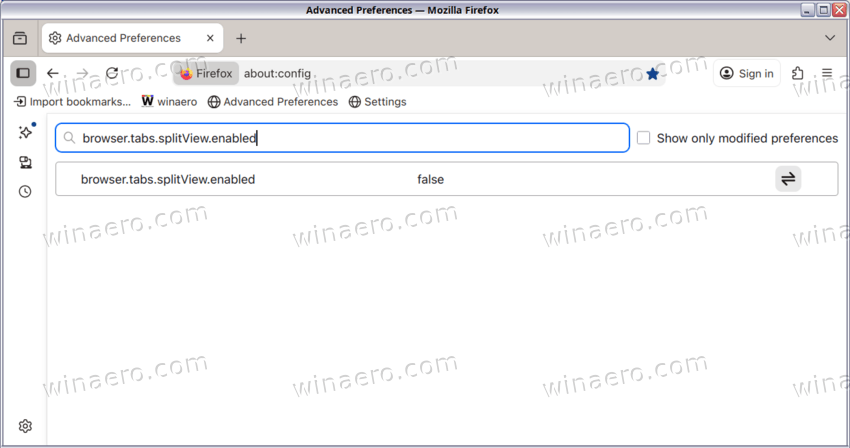
- Double-click the eponymous preference to toggle its value to true.
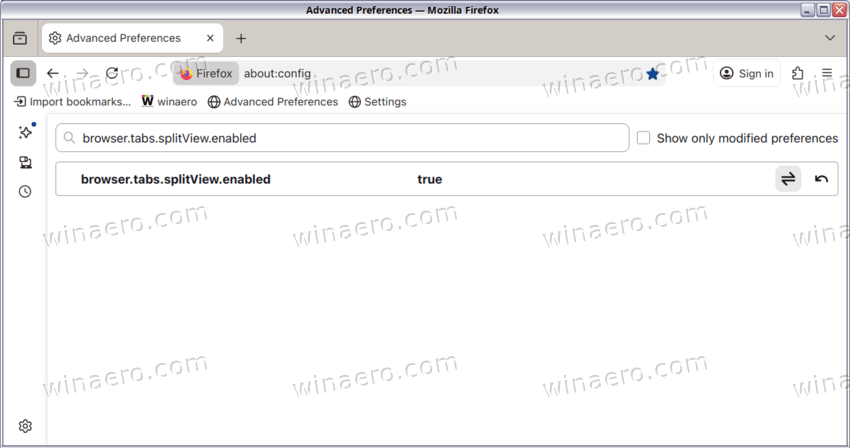
- Restart Firefox to apply the change.
- To use Split View, right-click any tab and select "Add Split View".
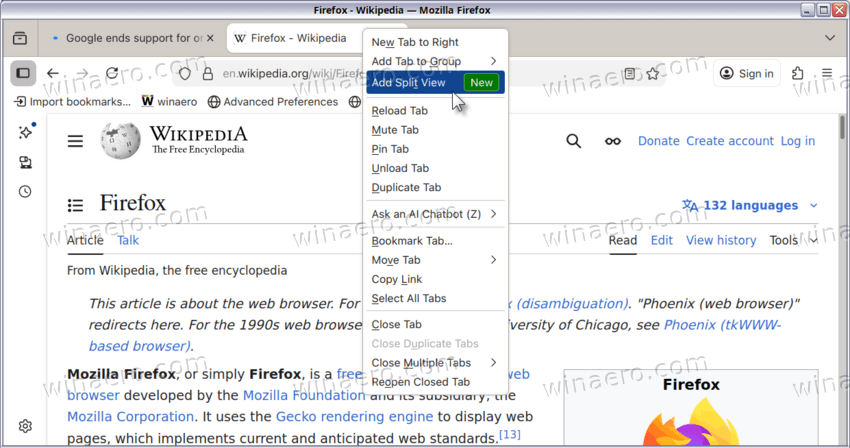
That's it! To compare two tabs, right-click a second tab and choose the same option—the two tabs will appear side by side.
How to Disable Split View (undo the change)
- Navigate to
about:configin the Firefox address bar and press Enter. - Search for
browser.tabs.splitView.enabled. - Double-click the preference to set its value to false.
- Restart Firefox to deactivate the feature.
That's it.
Support us
Winaero greatly relies on your support. You can help the site keep bringing you interesting and useful content and software by using these options:

