This tutorial explains how to turn off the display change animation on Windows 11. By default, the operating system plays a brief visual animation when the display resolution or refresh rate changes, when connecting or disconnecting an external monitor, and so on.
Advertisеment
Starting with Windows 11 Build 22631.3810, Microsoft introduced a new Registry value named ForceDisableModeChangeAnimation. You can create it under the key HKLM\Software\Microsoft\Windows\DWM. This option applies system-wide and affects every user profile on the device.
When the value is set to 1, Windows disables the brief visual animation that normally appears when the display resolution or refresh rate changes, as well as when connecting or disconnecting an external monitor or switching display modes. If the value is 0 or the Registry value is missing, Windows retains the default behavior, i.e. it shows the animation.
Disabling this visual effect can be useful in environments where visual feedback from system transitions may cause distraction or delay. A good example of such situations are digital signage setups, kiosk systems, or performance-critical workflows. Turning off the animation can also reduce perceived system lag during display reconfiguration, especially on gaming setups, older hardware, or in automated deployment scenarios.
How to Disable Display Mode Change Animation
To turn off the display mode change animation on Windows 11, do the following.
- Press Win + R to open the Run dialog.
- Type
regeditand press Enter. Confirm the User Account Control (UAC) prompt if it appears.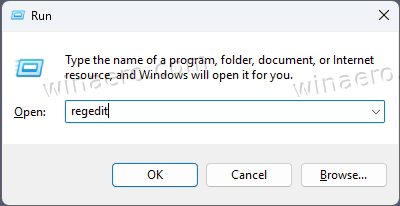
- Navigate to the following path:
HKEY_LOCAL_MACHINE\SOFTWARE\Microsoft\Windows\Dwm. 💡 You can paste this path into the regedit's address bar and press Enter to save your time.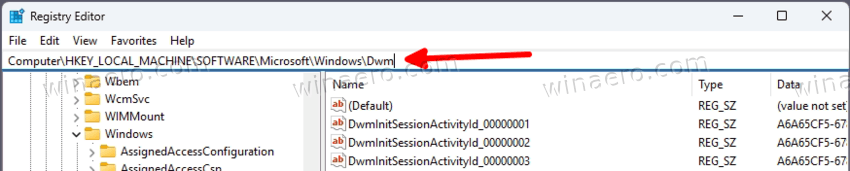
- Right-click on the white space in right-hand pane and select New > DWORD (32-bit) Value.
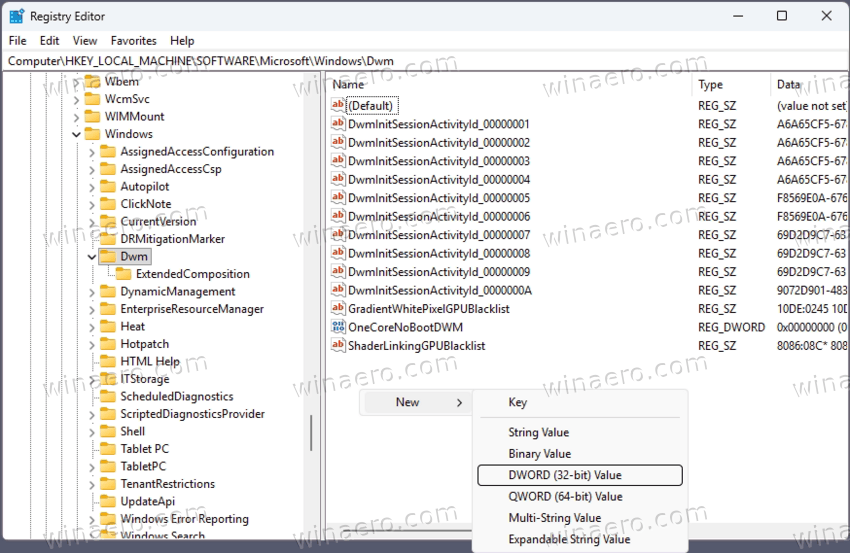
- Name the new value
ForceDisableModeChangeAnimation. - Double-click the newly created value and set its data to
1. Click OK to save the change.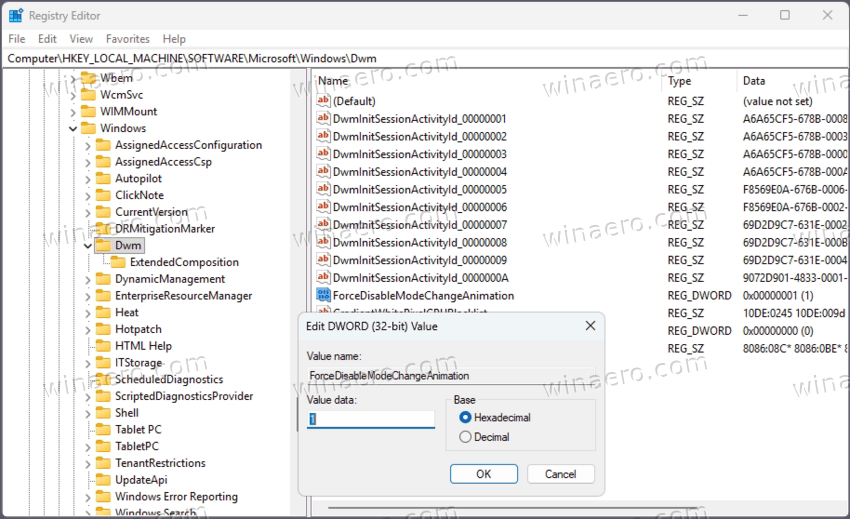
That's fine enough!
To undo this modification later, return to the same registry location, right-click the ForceDisableModeChangeAnimation value, and select Delete.
Alternatively, you can change the reviewed setting in the command prompt. In some cases, it is much faster than dealing with the Registry Editor.
How to Set ForceDisableModeChangeAnimation in Command Prompt
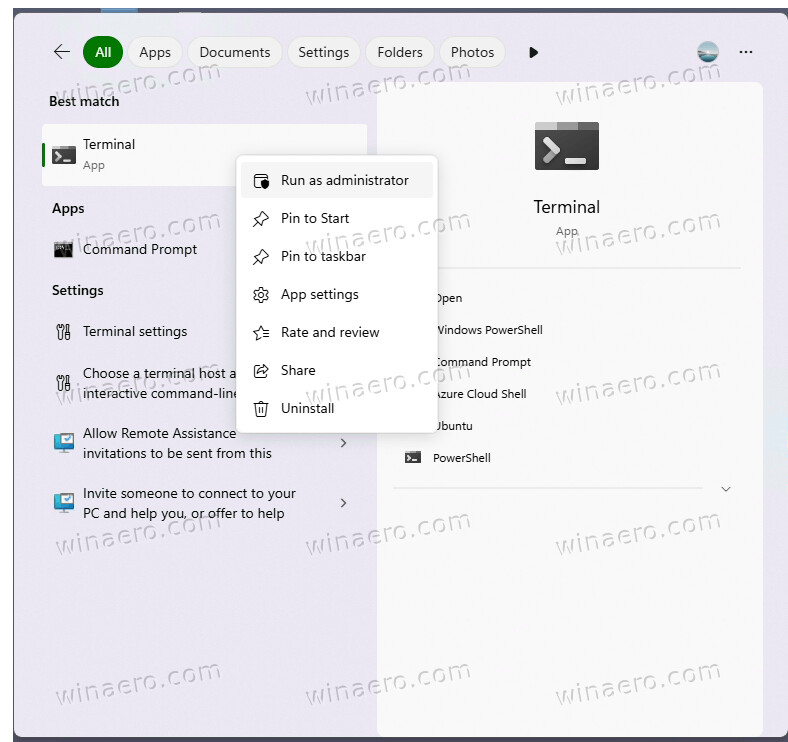
- Open Windows Terminal as Administrator. You can do this by searching for “Terminal,” right-clicking it, and selecting Run as administrator.
- To disable the animation, run the following command:
reg add "HKLM\SOFTWARE\Microsoft\Windows\Dwm" /v ForceDisableModeChangeAnimation /t REG_DWORD /d 1 /f.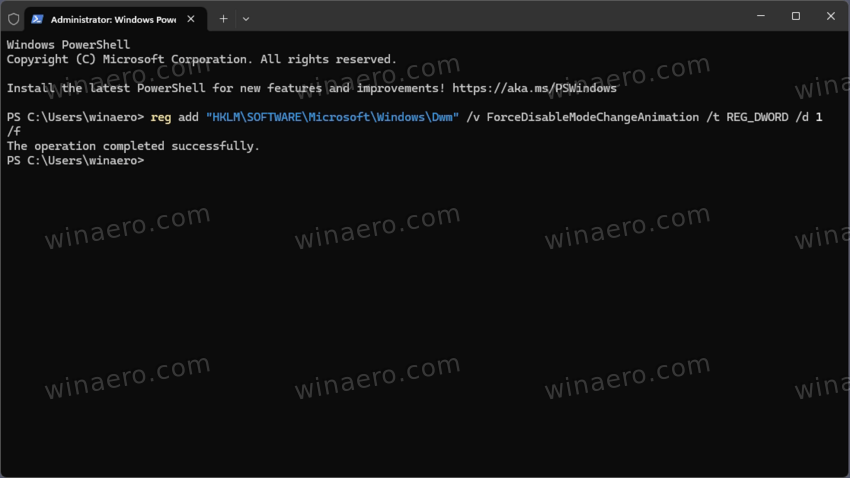
- To enable the animation (or reset to default), run:
reg add "HKLM\SOFTWARE\Microsoft\Windows\Dwm" /v ForceDisableModeChangeAnimation /t REG_DWORD /d 0 /f.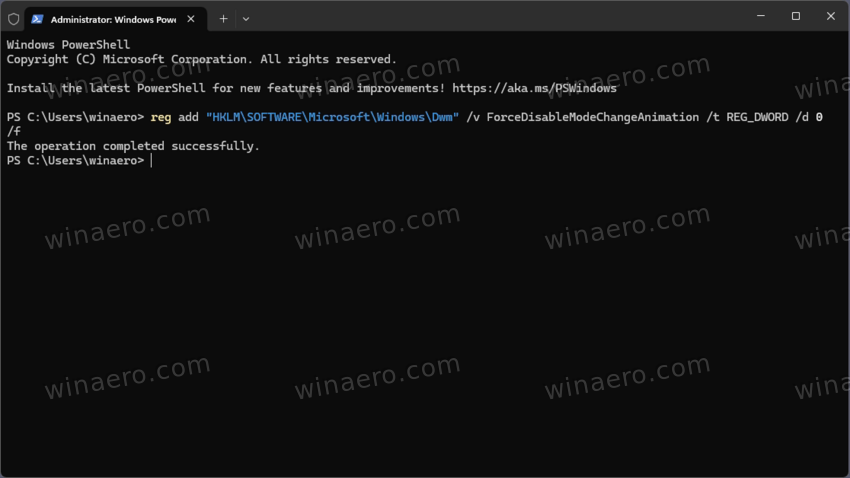
- To undo the change and remove the registry value entirely, use:
reg delete "HKLM\SOFTWARE\Microsoft\Windows\Dwm" /v ForceDisableModeChangeAnimation /f.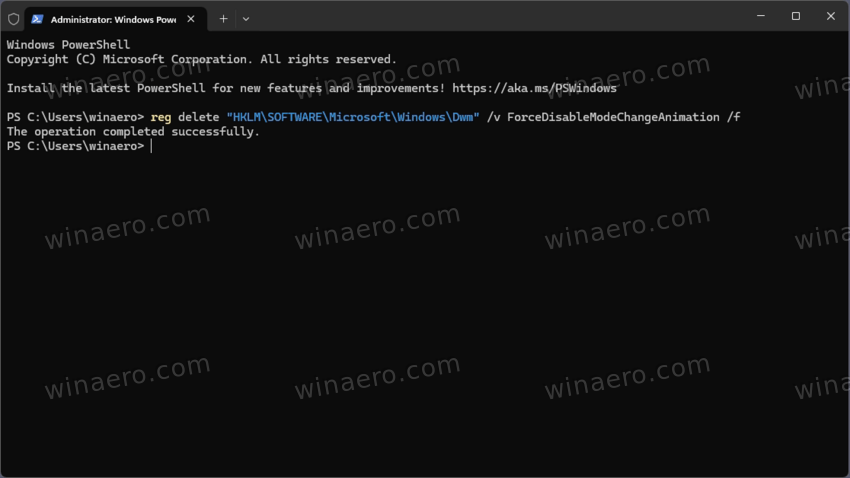
That's it!
Ready-to Use REG files
Finally, you can download special Registry (*.REG) files to quickly turn off or on the visual effect.
Point you web browser to this link: Download Files.
Extract the ZIP archive to any folder of your choice. There are two REG files inside it, which you can put to any folder convenient to you.
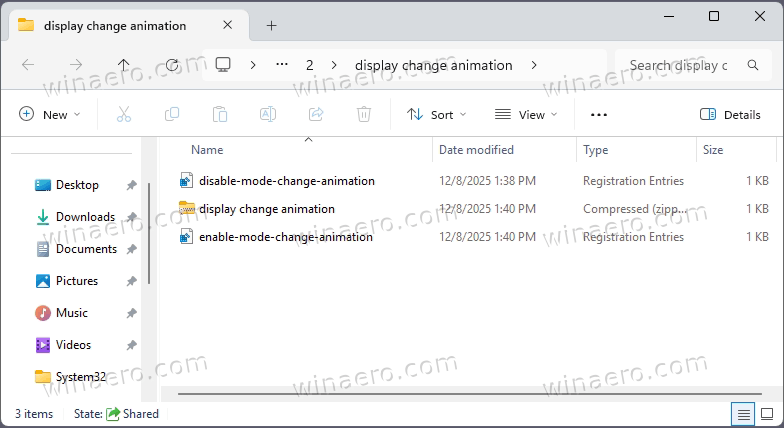
Finally, to disable the display mode change animation, double-click the "disable-mode-change-animation.reg" file. Confirm the User Account Prompt, then click YES and OK in the Registry editor file merge dialog.
The other file in the archive, "enable-mode-change-animation.reg", is the undo tweak.
You can also create such a REG file by yourself.
Create REG files manually
Open Notepad, and paste the following content in the document:
Windows Registry Editor Version 5.00

[HKEY_LOCAL_MACHINE\SOFTWARE\Microsoft\Windows\Dwm]
"ForceDisableModeChangeAnimation"=dword:00000001
Save it as a file with the .reg extension (for example, disable-mode-change-animation.reg). Take the file name into quotation marks, otherwise Notepad may save it as a ".reg.txt" document.
Finally, double-click the file to apply the change!
To reverse this action later, create and run a second .reg file containing the following:
Windows Registry Editor Version 5.00

[HKEY_LOCAL_MACHINE\SOFTWARE\Microsoft\Windows\Dwm]
"ForceDisableModeChangeAnimation"=-
That's it!
Using Winaero Tweaker
If you are a user of the Winaero Tweaker app, it includes a GUI option that allows managing the reviewed Registry value.
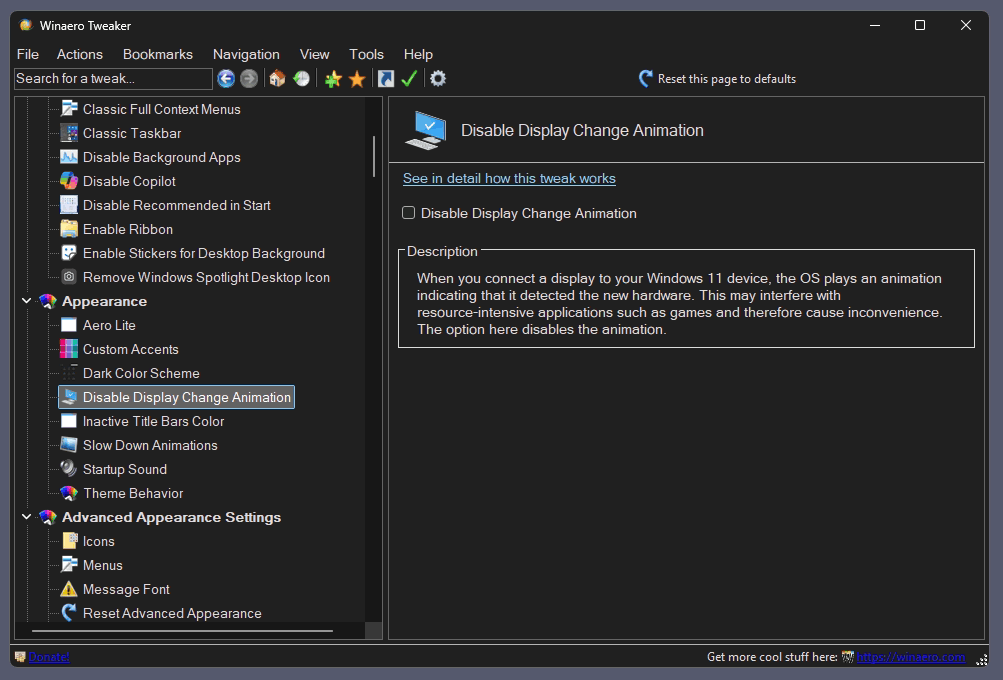
Placing a check mark on the Appearance > Disable Display Change Animation will turn off the visual effect. Removing it will re-enable the animation. You can get Winaero Tweaker here.
Thanks to our friend "Aerath Xlythe" for the tip!
Support us
Winaero greatly relies on your support. You can help the site keep bringing you interesting and useful content and software by using these options:


I wasn’t even aware such an animation existed, but then I have animation effects disabled in Accessibility > Visual effects in Settings.
So I guess that’s another way of disabling it, if you don’t mind the rest of Windows’ unnecessary animations being disabled too. (That is, the ones the devs remembered to actually disable when that setting is off. Too often I find MS apps ignoring Windows accessibility settings.)