For who always wanted, this tutorial explains how to disable the Recommended in Start Menu and hide it with a simple Registry tweak. From the very first days of its existence, this new section drawn a lot of criticism due to the lack of customization options. Microsoft didn't include a single setting to hide the list of so-called "recommended" shortcuts, recent files, and even promoted apps, forcing the default layout on the user. Here's an easy way to change the things.
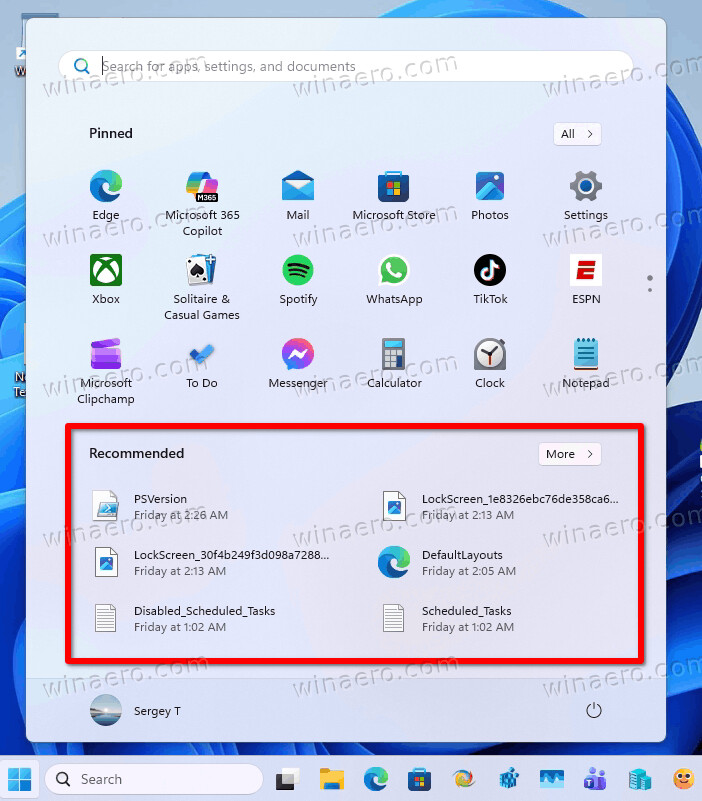
So, the Recommended section is a feature in the Start menu of Windows 11. It displays a curated list of recently opened files and frequently used applications. It is curated by the OS and Microsoft, and little by the user. The user can remove some files from, disable new file addition, it but no more. It appears below the pinned apps area and favorites. The main idea - give quick access to relevant content based on user activity.
Advertisеment
It displays recently accessed files, including documents, images, and any other file type known to Windows. Besides, there are frequently used apps. If you start some app very often, it will appear there. Finally, you will eventually see ads there. I recall we have see the Opera browser promotion in Insider builds.
The items shown are sourced from local storage and Microsoft 365-connected services (such as OneDrive/Office.com or SharePoint), depending on system settings and user permissions.
By opening Settings > Personalization > Start, and disabling Show recently added/most apps and Show recently opened items in Start, Jump Lists, and File Explorer you make the Recommended section empty. But it remains visible and can occasionally show promotional content. You may be not happy with such option. If so, here is the Registry tweak for you.
Hide Recommended from Start Menu in Windows 11
To disable the Recommended section in the Start menu, do the following.
- Press Win + R, type
regedit, and press Enter. - Navigate to:
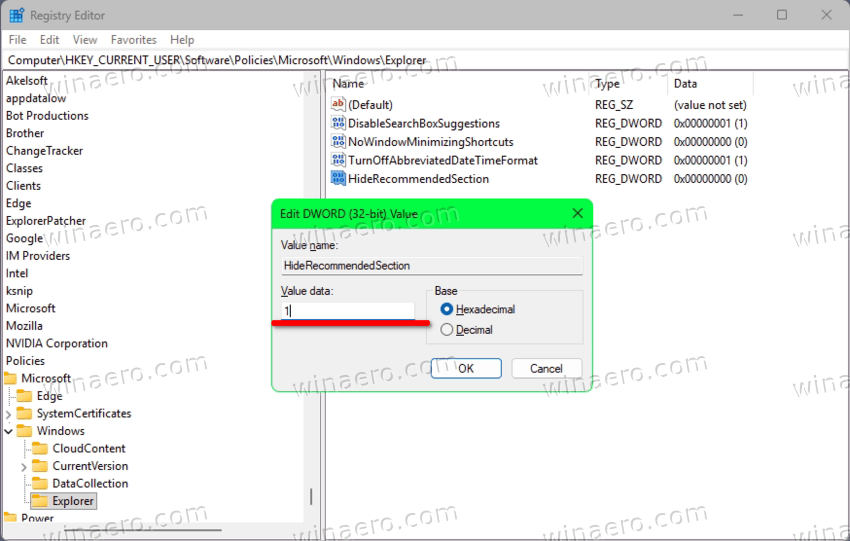
HKEY_CURRENT_USER\SOFTWARE\Policies\Microsoft\Windows\Explorer
If theExplorerkey doesn’t exist, right-click theWindowskey, select New > Key, and name itExplorer.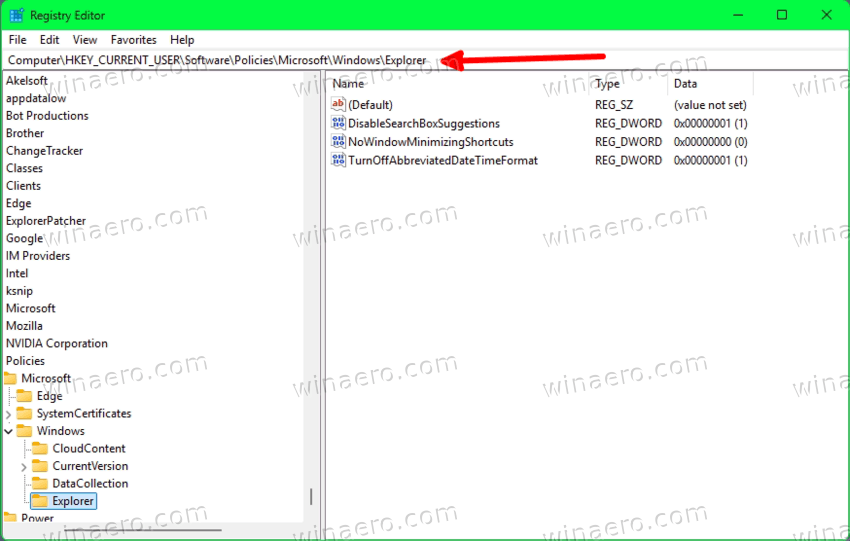
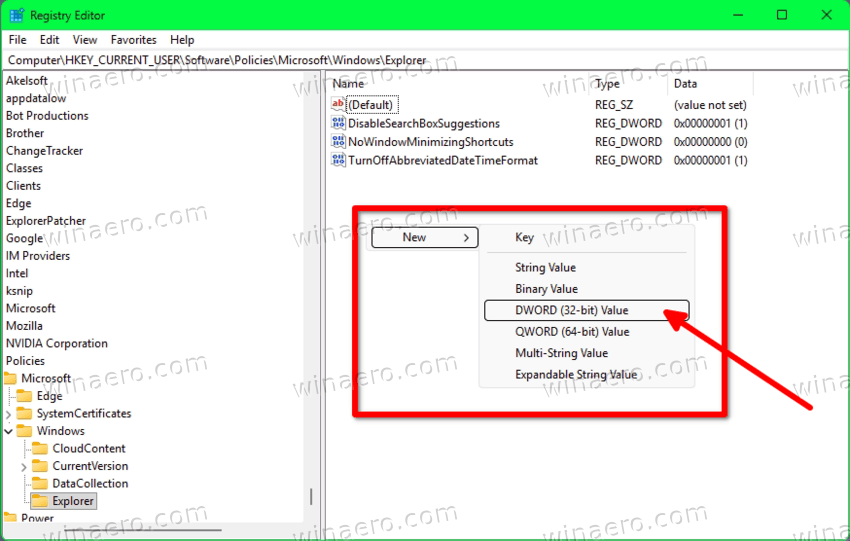
- Right-click in the right pane, and select New > DWORD (32-bit) Value.
- Name it HideRecommendedSection.
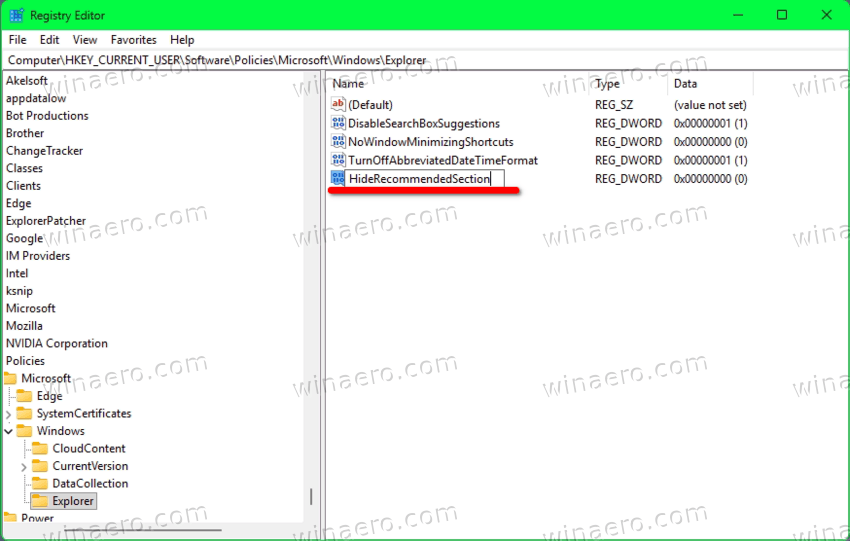
- Double-click the new value and set its data to
1.
- Now, in Regedit, navigate to:
HKEY_LOCAL_MACHINE\SOFTWARE\Microsoft\PolicyManager\current\device\Education. Create manually any missing part of this path.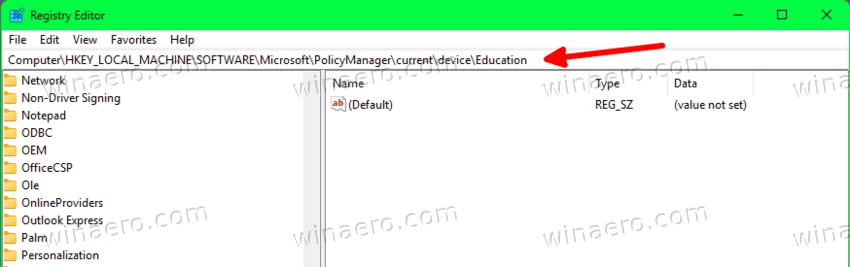
- Right-click anywhere in the right pane New > DWORD (32-bit) Value.
- Name it
IsEducationEnvironment.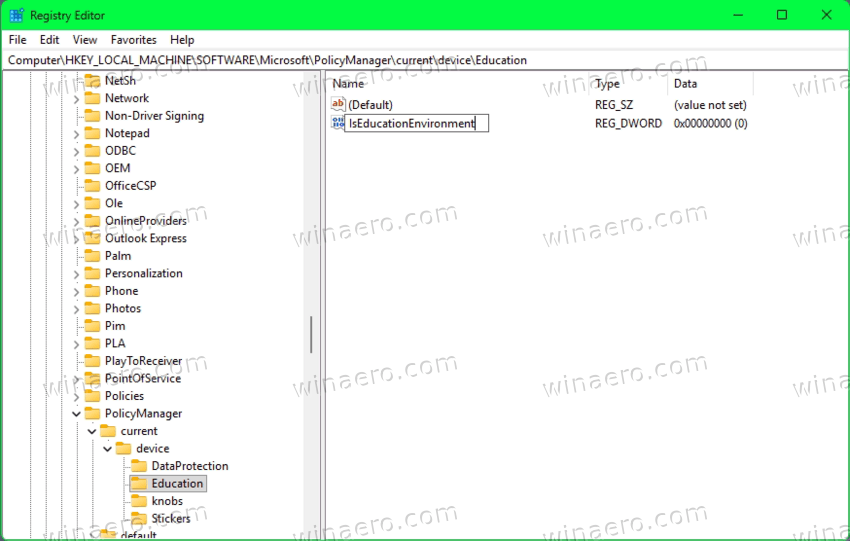
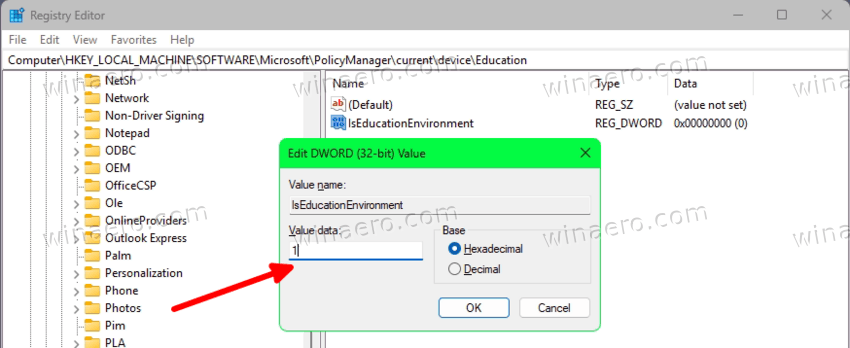
- Double-click the new value and set its data to
1.
- Restart Windows 11.
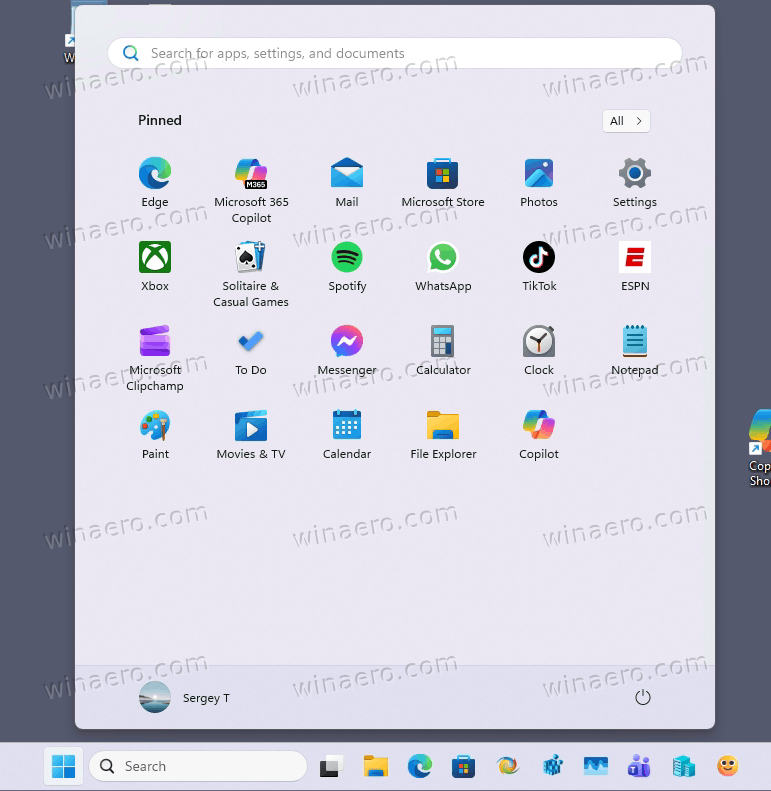
Congrats, you have disabled the Recommended section of the Start menu. Open it - it only has the pinned apps (and maybe Favorites, if you use them).
Note: Administrative privileges are required to modify HKEY_LOCAL_MACHINE.
Running Commands from Windows Terminal
To hide the Recommended section from Start using command prompt, do the following.
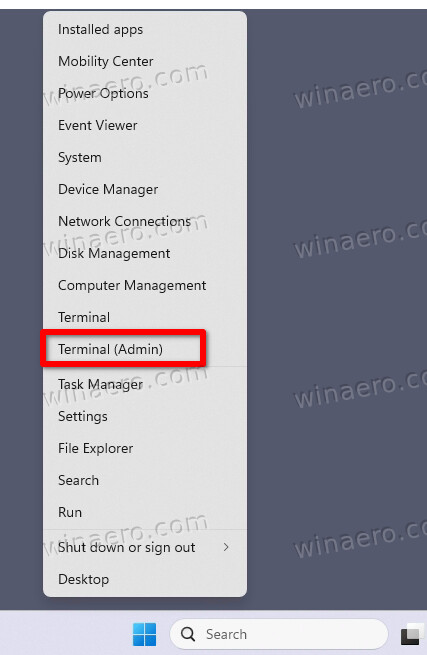
- Press Win + X or right-click the Start button.
- Select Terminal (Admin) to open Windows Terminal as Administrator.
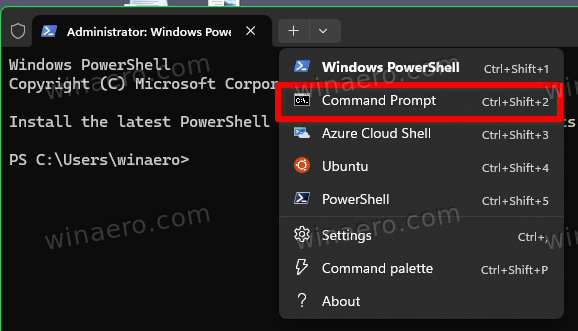
- Switch to the Command Prompt tab from the Terminal drop-down menu or with the Ctrl + Shift + 2 keys.
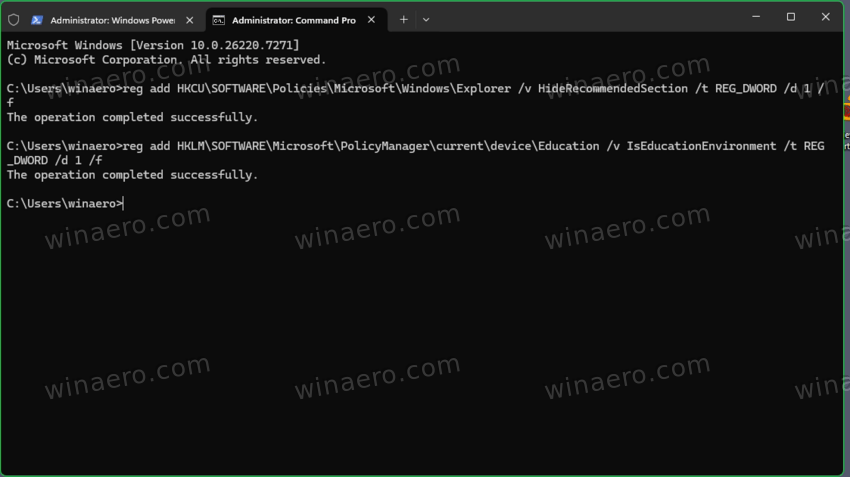
- Now, type the following commands, one after one:
- reg add HKCU\SOFTWARE\Policies\Microsoft\Windows\Explorer /v HideRecommendedSection /t REG_DWORD /d 1 /f
- reg add HKLM\SOFTWARE\Microsoft\PolicyManager\current\device\Education /v IsEducationEnvironment /t REG_DWORD /d 1 /f
- Just one thing left - restart Windows 11. Do it, and you are good to go.
That's it. Alternatively, you can use some PowerShell commands. Here's how.
Using PowerShell to Disable Recommended in Start
- Open Windows Terminal as Administrator. By default it opens to PowerShell.
- Execute the following commands:
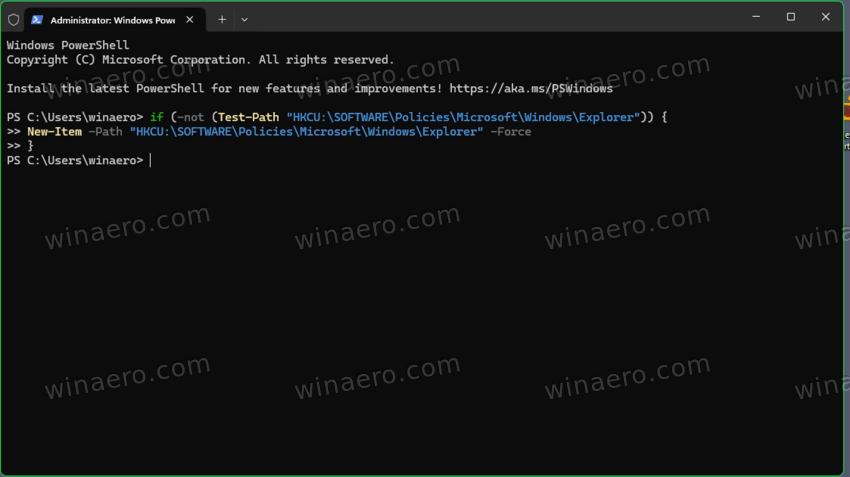
- To create the Explorer key if missing:
if (-not (Test-Path "HKCU:\SOFTWARE\Policies\Microsoft\Windows\Explorer")) {.
New-Item -Path "HKCU:\SOFTWARE\Policies\Microsoft\Windows\Explorer" -Force
}
- This command sets the HideRecommendedSection value to 1:
Set-ItemProperty -Path "HKCU:\SOFTWARE\Policies\Microsoft\Windows\Explorer" -Name "HideRecommendedSection" -Value 1 -Type DWord -Force - To create the Education key:
If (-not (Test-Path "HKLM:\SOFTWARE\Microsoft\PolicyManager\current\device\Education")) {
 New-Item -Path "HKLM:\SOFTWARE\Microsoft\PolicyManager\current\device\Education" -Force
} - Finally, to set the IsEducationEnvironment value, run this:
Set-ItemProperty -Path "HKLM:\SOFTWARE\Microsoft\PolicyManager\current\device\Education" -Name "IsEducationEnvironment" -Value 1 -Type DWord -Force. - Now you have to restart your computer, and you are finished.
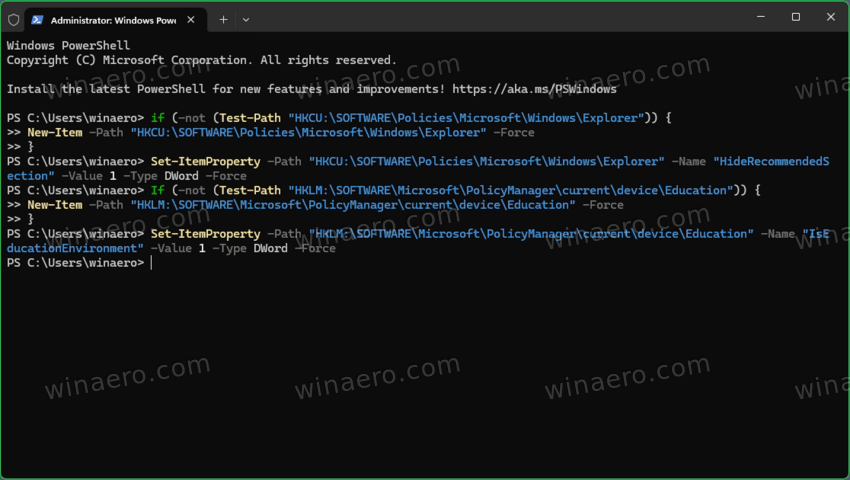
If the target registry paths do not exist, you will create them first using New-Item commands.
Finally, you may want to get ready-made REG files to apply the Registry modification with one click. Here's how to download them.
Disable Recommended in Start using REG Files
- Download the ZIP archive linked here.
- Extract it to any folder of your choice; the Desktop is quite fine for that.
- Double-click the
Disable Recommended in Start.regfile to apply the tweaks. - Confirm the prompts to import the settings into the registry. Subsequently click on Yes, Yes, OK in the appropriate User Account Control and Registry Editor dialogs.
- Restart your computer to apply the changes.
The contents of the REG File
Windows Registry Editor Version 5.00

[HKEY_CURRENT_USER\SOFTWARE\Policies\Microsoft\Windows\Explorer]
"HideRecommendedSection"=dword:00000001

[HKEY_LOCAL_MACHINE\SOFTWARE\Microsoft\PolicyManager\current\device\Education]
"IsEducationEnvironment"=dword:00000001
The other file in the ZIP archive, called Enable Recommended in Start.reg, is a simple undo tweak. It removes the two files reviewed in post.
It is unlikely that the tweak we learned today will last for long. Microsoft is not interested in hiding the Recommended section. I bet they will patch the OS and stop the tweak from working. At the moment of this writing, it works in all versions starting from Windows 11 22H2 to the most recent Windows 25H2. But again - I am sure that things will soon change.
I say many thanks to Vadim Sterkin and his readers Niks and Alexander O. for bringing this tweak to my attention. It is already part of Winaero Tweaker 1.64.
Using Winaero Tweaker
Download Winaero Tweaker from here and install the app. Now, select Windows 11 > Disable Recommended in Start in the left pane. All you need to do is to place a check mark, and restart the OS when prompted.
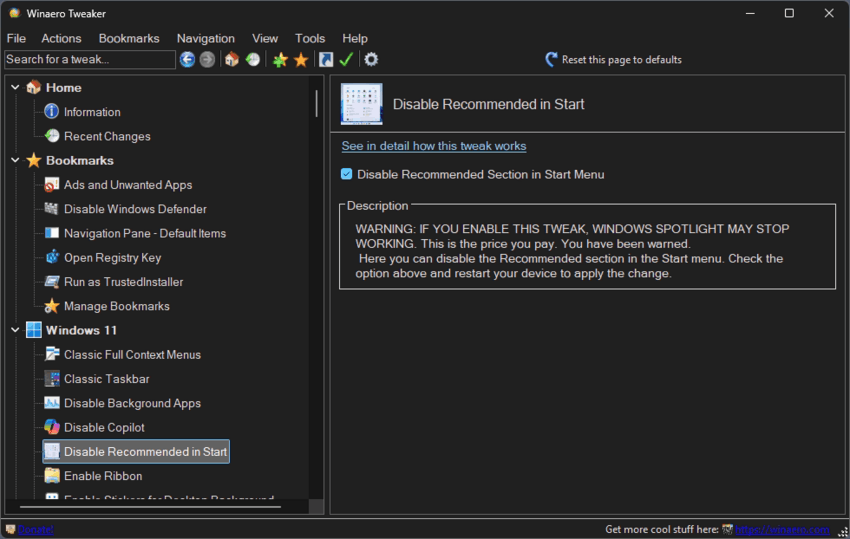
By simply removing the checkmark, you restore the OS defaults.
Support us
Winaero greatly relies on your support. You can help the site keep bringing you interesting and useful content and software by using these options:

