You may be interesting in learning how remove the AI Mode button in Google Chrome if you have no use for it. The button appears in the address bar and on the new tab page starting in version 138, at least on the Windows platform. Here are two methods that you can use.
Advertisеment
Recent updates to Google Chrome have introduced an AI-driven feature which adds the ability to pass your search terms directly to Google's AI models via the browser. This functionality works through a dedicated AI Mode button located in the address bar and on the new tab page. Rather than merely returning standard search links, the AI Mode facilitates a conversational interface that analyzes, synthesizes, and tailors information to individual user needs.
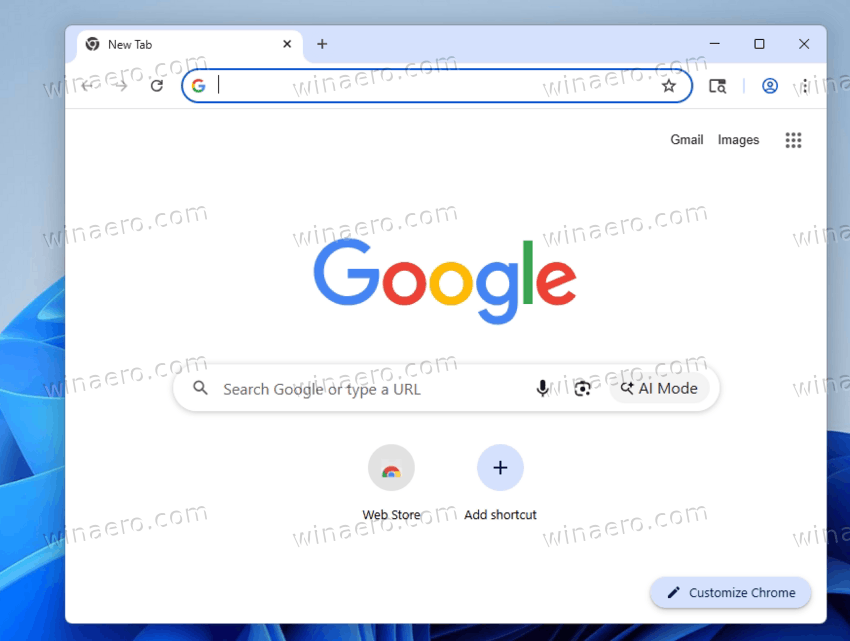
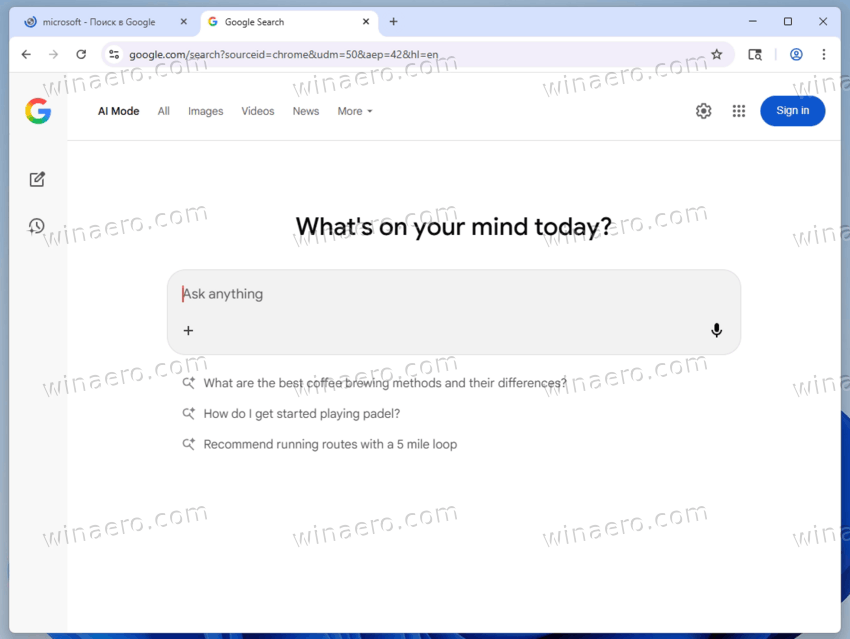
While this integration may benefit frequent AI users, others may prefer the traditional browsing experience without visual clutter. While it is possible to disable the AI Mode button, Google made it harder than just a switch in the browser settings. You need to do either adjustments to Chrome’s experimental settings, or apply a special Group Policy option. Let's start with the latter, as Group Policies for Chrome usually survive longer than the flags.
Disable AI Mode Button in Google Chrome
To remove and hide the AI Button from the Chrome browser, do the following.
- Press the Win + R keys, and type regedit in the Run box. Press Enter to launch the Registry Editor.
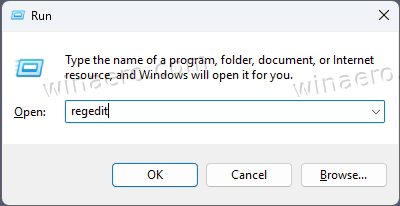
- Navigate to the following registry path in the left pane:
HKEY_CURRENT_USER\SOFTWARE\Policies - Under the Policies key, create a new key named Google. For that, right-click the Policies key on the left, and select New > Key from the menu.
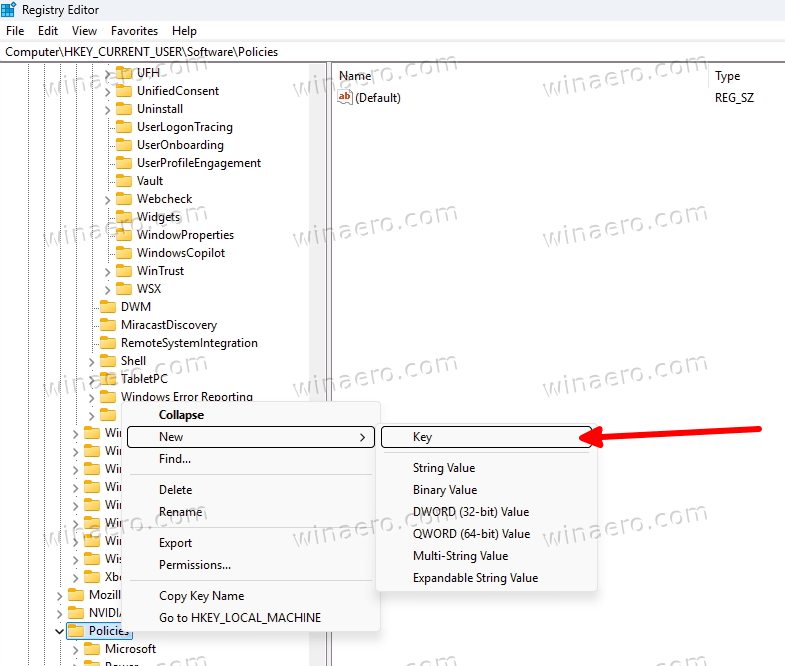
- Within the Google key, create another new key and name it Chrome. You should get the
HKEY_CURRENT_USER\SOFTWARE\Policies\Google\Chromepath. - Right-click the Chrome key in the left pane, and select New > DWORD (32-bit) Value in the menu.
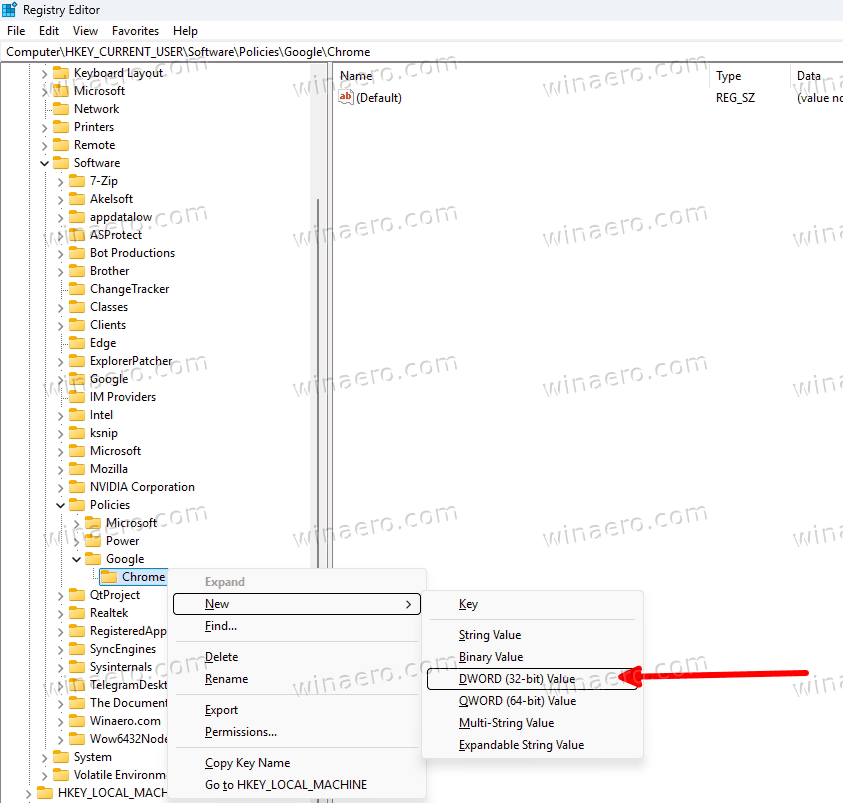
- Name your value AIModeSettings.
- Finally, double-click the AIModeSettings item and change its value data from 0 to 1.
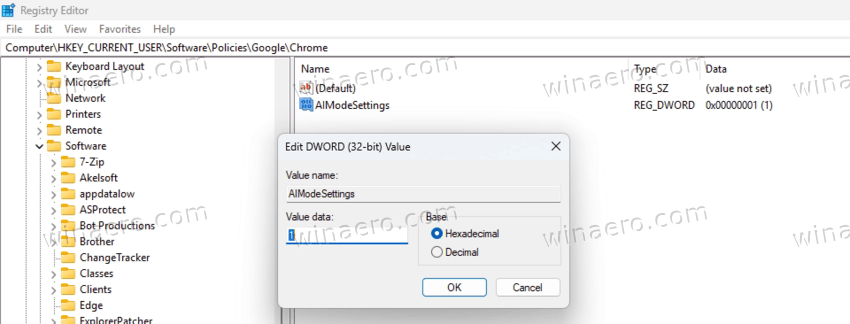
- Sign out from your Windows account and sign in back. This will make Chrome read its policies, and disable the AI Mode button.
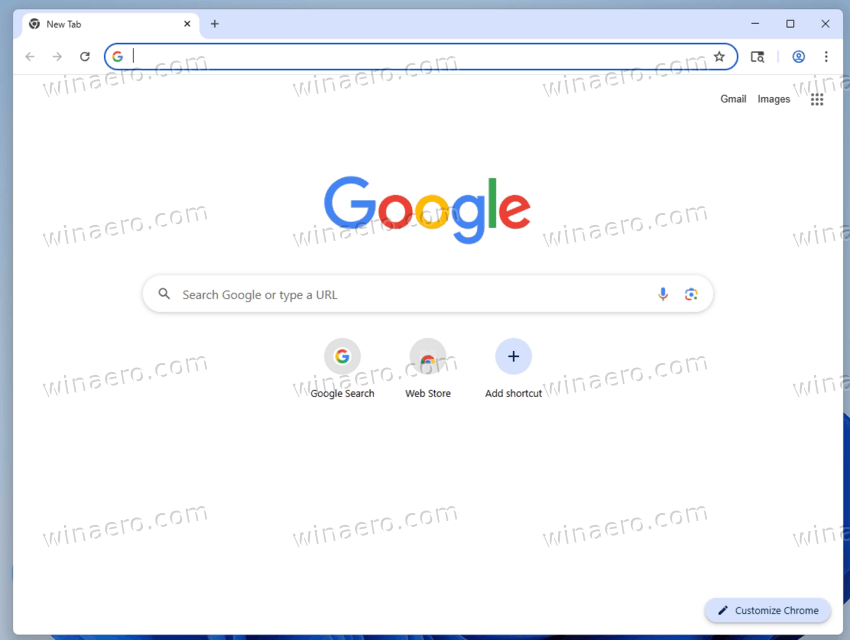
That's it. The AI Mode functionality will no longer appear in the browser interface.
Restoring AI Mode via Registry
If you later decide to re-enable AI Mode, return to the HKEY_CURRENT_USER\SOFTWARE\Policies\Google\Chrome registry location and either delete the AIModeSettings DWORD value or modify its data to 0. Restart Chrome to apply the change.
Ready-to-use REG files
To save your time, you can get a couple of REG files. They will modify the Registry for you much faster.
- Download this ZIP archive with two REG files.
- Extract them to any folder of your choice.
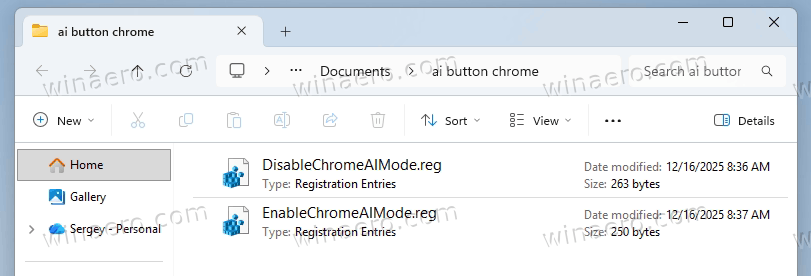
- Double click the
DisableChromeAIMode.regfile, and confirm the prompts to apply the changes to the registry. - Restart Google Chrome for the setting to take effect.
Finally, the other file is the undo tweak.
If you are running Linux, the steps are quite different. There, Chrome policies are in a special JSON file.
Hide AI Mode Button in Chrome on Linux
- Open a root terminal, e.g. by typing
sudo su -in a regular one if your run an Ubuntu-based OS.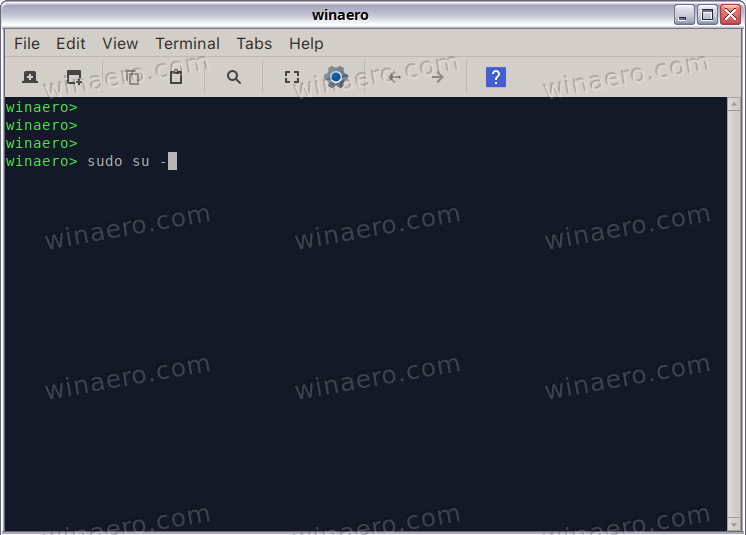
- Now type the following command
mkdir -p /etc/opt/chrome/policies/managedand press Enter to create the directories where Chrome is looking for its policies.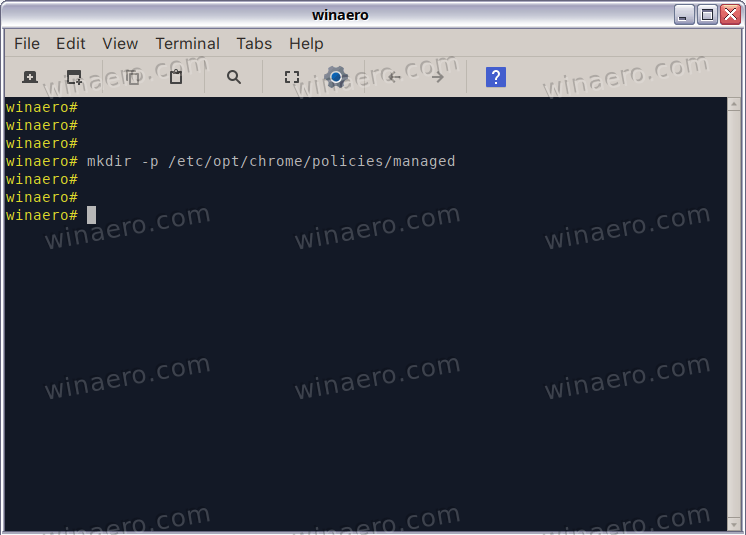
- Now run you favorite text editor, say nano, with the following argument:
nano /etc/opt/chrome/policies/managed/policies.jsonand hit Enter.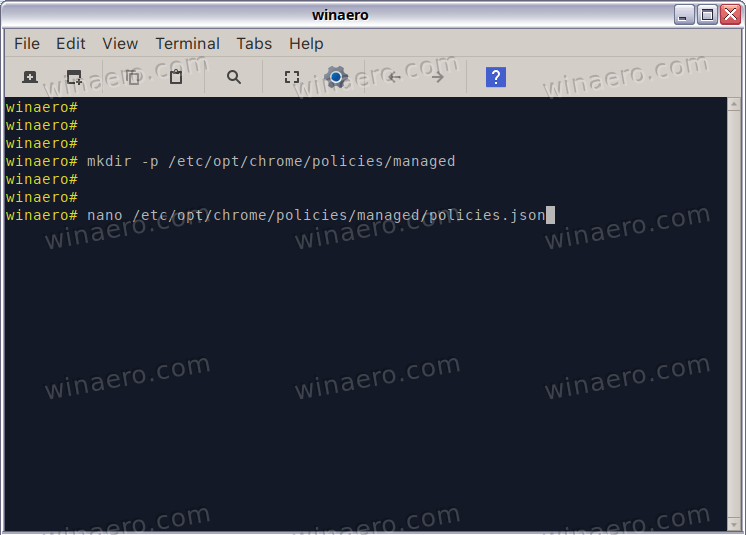
- Enter the following text in your file:
{"AIModeSettings": 1}- If you already have such a file, just put a comma after the last policy in your set, and add
"AIModeSettings": 1on the new line. See this screenshot: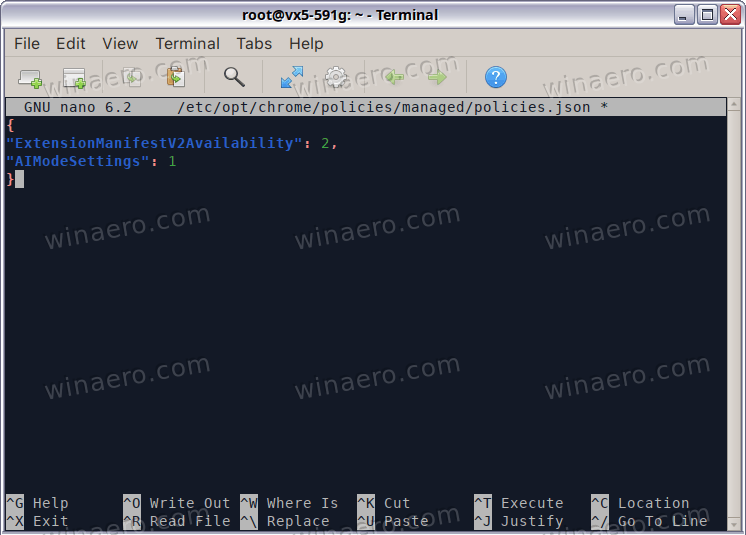
- If you already have such a file, just put a comma after the last policy in your set, and add
- Save the changes. In nano, you need to press Ctrl + O for that and then Ctrl + X to exit it.
- Restart your Chrome browser. This is how you remove the AI Mode button from Chrome on Linux.
That's all about the policy method. Alternatively, you can change the Chrome flags. Here's how.
Chrome Flags Method
Remove AI Mode Button from Address Bar and NTP
To remove the AI Mode button from Chrome’s address bar and new tab page, modify a specific experimental flag:
- Launch Google Chrome.
- Enter the following URL into the address bar and press Enter:
chrome://flags/#ai-mode-omnibox-entry-point - Find the setting labeled “AI Mode Omnibox entrypoint.”
- Change its value from “Default” to “Disabled.”
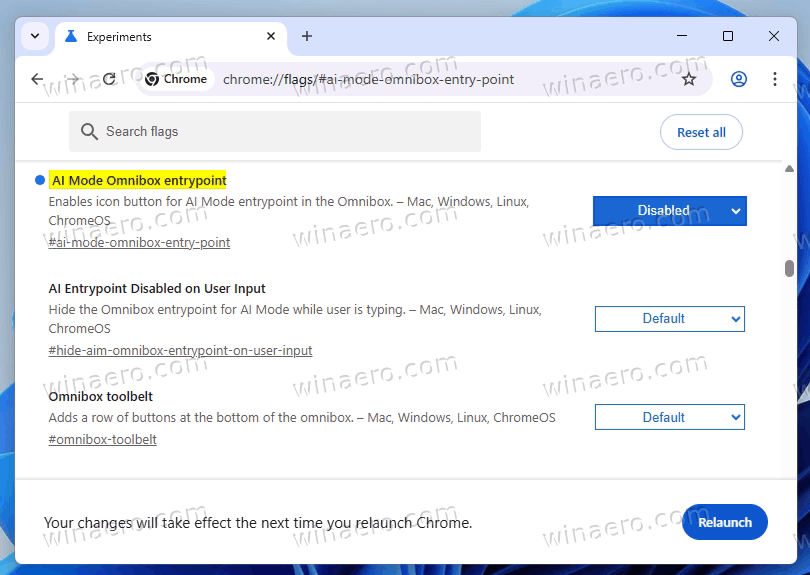
- Now visit:
chrome://flags/#ntp-compose-entrypoint - Set “NTP Compose Entrypoint” to “Disabled.”
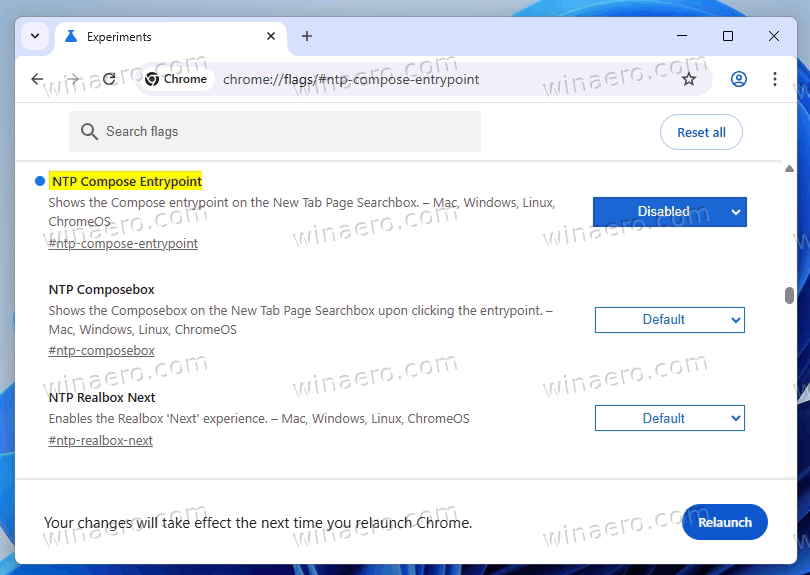
- Relaunch the browser.
This action removes the AI Mode button from the address bar and the search box on the New Tab page.
Also, you can adjust a few more flags.
Additional Experimental Flags for AI Features
Google Chrome includes several other experimental settings that influence how AI functionality appears and behaves. Users seeking a cleaner interface may consider adjusting these additional flags.
AI Entrypoint Disabled on User Input
This setting prevents the AI Mode button from appearing in the address bar while the user types a URL or search query. To change this behavior, do the following
- Navigate to:
chrome://flags/#hide-aim-omnibox-entrypoint-on-user-input - Set “AI Entrypoint Disabled on User Input” to “Enabled.”
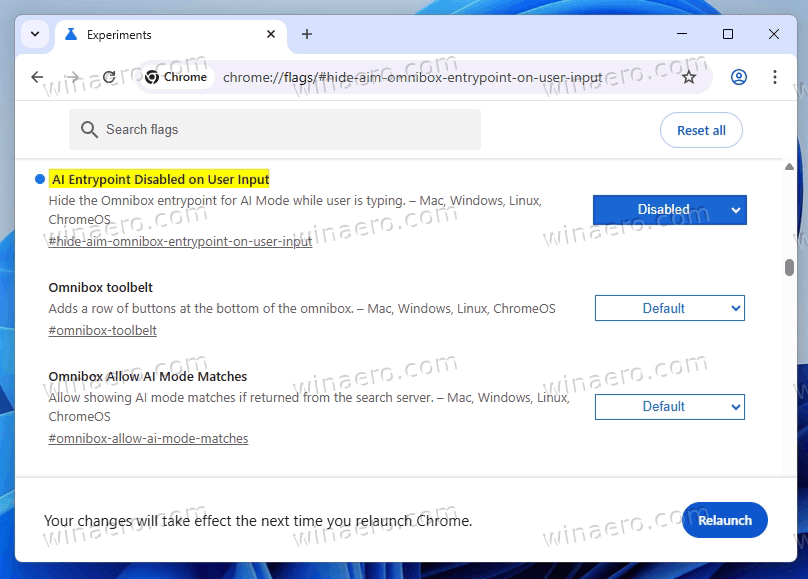
Conversely, setting this flag to “Disabled” allows the button to remain visible regardless of user input.
Omnibox Allow AI Mode Matches
When enabled, this option permits Chrome to suggest AI-generated responses directly within the omnibox dropdown as the user types. These suggestions typically appear when the browser identifies the input as a question suitable for an immediate AI answer. To manage this feature:
- Open:
chrome://flags/#omnibox-allow-ai-mode-matches - Select “Enabled” to allow AI suggestions or “Disabled” to suppress them.
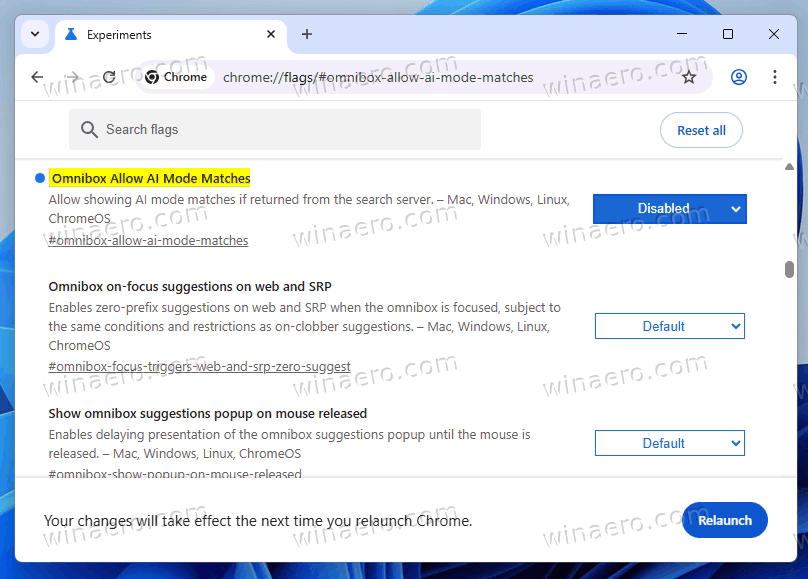
After adjusting any of the aforementioned flags, users must restart the browser for the changes to take effect. Chrome provides a “Relaunch” button at the bottom of the flags page to simplify this process. Once relaunched, the AI Mode buttons will no longer appear in the specified locations.
Closing words
The reviewed instructions apply to Google Chrome version 140+ and similar recent releases. Google may alter or hardcode these AI features in future updates, potentially removing the ability to disable them through flags.
Support us
Winaero greatly relies on your support. You can help the site keep bringing you interesting and useful content and software by using these options:

