Windows Search is a really great time-saving feature of Windows because it indexes all my important stuff. I cannot imagine how my productivity would be affected if Windows Search wasn't available. In Windows 10, the new Start menu is also powered by Windows Search and you can use it to launch installed apps and Control Panel items very quickly using the trick described below.
Author: Sergey Tkachenko
Download RestartExplorer
RestartExplorer.
Performs a graceful restart of the Explorer shell in Windows 10, 8, 7 and Vista. Explorer will save your preferences, i.e. icons order on Desktop and then restart.
Download ExitExplorer – a tool to exit explorer in Windows 10 and above/below
ExitExplorer - a tool to exit explorer in Windows 10 and above/below.
This tool can be used to exit the Explorer shell in your batch files or in some similar scenario.
List of shell commands in Windows 10
There are lots of shell commands in Windows 10, that you can access by typing shell:<SomeFriendlyName> into the "Run" dialog or the Start menu search box. In most cases, these shell commands open some system folder or Control panel applet. For example, you can access the Startup folder quickly, if you type the following in the Run dialog:
shell:Startup
These commands can also show some hidden secret features like the two so called "God Mode" folders - All Tasks and All Settings. Today I would like to share with you the exclusive list of the shell commands in Windows 10. It is the most complete list and includes every single command that exists in Microsoft's latest OS.
How to view your product key in Windows 10, Windows 8 and Windows 7
If you lost or forgot where you had stored your Windows product key, I have a solution for you. Today we will see how a simple VBS script can be used to show us the product key of an installed copy of Windows 10, Windows 8 or Windows 7. It is a simple solution to extract your product key from the OS installed on your PC without using any third party software. Here we go.
Download View Product Key in Windows VBS script
View Product Key in Windows VBS script.
This script will allow you to see the product key of the installed Windows 10, Windows 8 and Windows 7.
Opaque Taskbar for Windows 8 and Windows 10
Most annoying thing in Windows 8's appearance, beside Metro and Charms Bar of Desktop, is transparent Taskbar. It does not fit the opaque window frames and looks ugly.
I decide to fix it.
Last night my friend Tihiy, the author of StartIsBack solution, has shared with me the way to disable tasbkar transparency via DWM API. So I have created Opaque Taskbar for Windows 8. 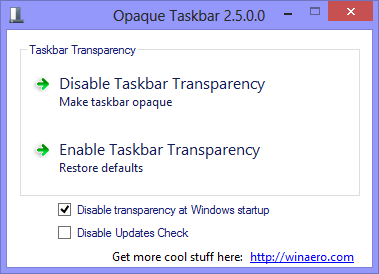
Latest version is 2.7, see the change log below.
With v2.5 I decide to provide x64 version, for those who have removed x86 .NET components in x64 OS.
With help of this simple and lightweight application you will be able to make your taskbar Opaque in any time you want it. Also it can optionally run in the background or it can run once and then exit without taking memory. You can close it after you have disabled the transparency.
Get Windows 7 games for Windows 10
Here's how to download Windows 7 games for Windows 10
Windows 7 had a set of nice, beautiful games including the classic card games with new shiny graphics and some great new games from Vista like Chess Titans, Mahjong Titans and Purble Place. For some reason, Microsoft decided to discontinue these games and offers bloated Modern games from the Store instead. For fans of the original Windows 7 games, here is a simple tutorial to revive them on Windows 10.
How to open elevated command prompt in Windows 10
In my articles, you often see instructions to open the command prompt as admin. In Windows 10 also, you will need to use it from time to time, so I would like to share with you the various ways to open an elevated command prompt. Let's explore them right now.
How to disable Ribbon in Windows 10 Explorer
In Windows 8, Microsoft introduced the Ribbon in Windows Explorer so that the numerous Explorer commands can be more prominently displayed when you need them. Windows 10 inherited the Ribbon feature of the File Explorer. There are plenty of users who do not like the Ribbon and prefer to use the classic toolbar of Windows 7 Explorer. While it is possible to get the command bar and menu bar back in Windows 10 using unofficial methods, there is no supported option for that in File Explorer settings. In this article, we will see how to disable the Ribbon in Windows 10 and get back the old menu bar.

